

The comrce Hub admin console
The admin console is where comrce staff run comrce Hub. Here you manage companies and accounts, the Marketplace and News, API clients and languages. It opens at the same address as the customer app. Every account with a staff role sees the console instead of the customer area.
What you see depends on your role. A Super Admin sees every area, and the staff role Partner sees companies and users read-only. A News Editor sees only News. Without the role, a direct link shows You do not have permission to view this page.. Some pages show an error instead.
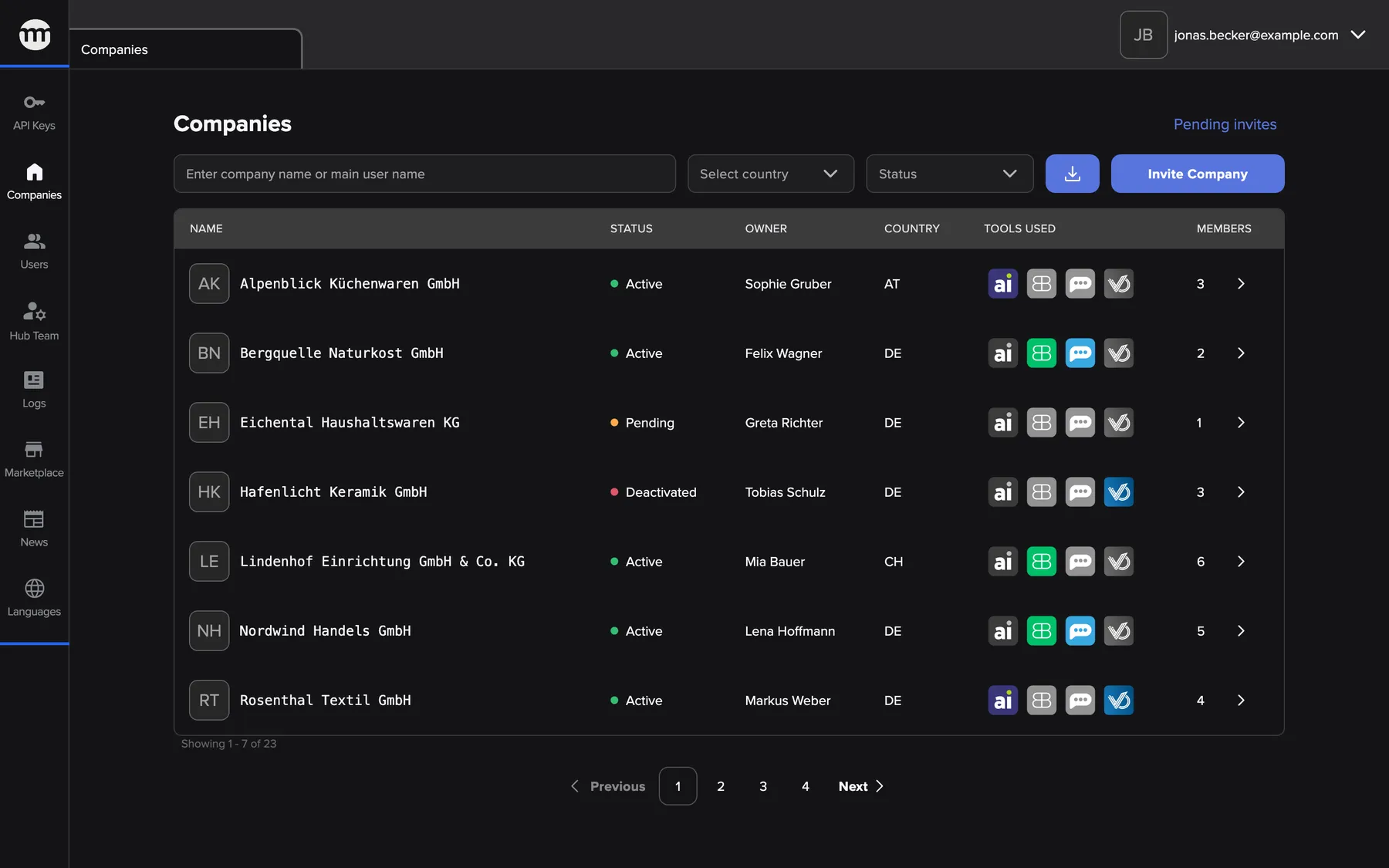
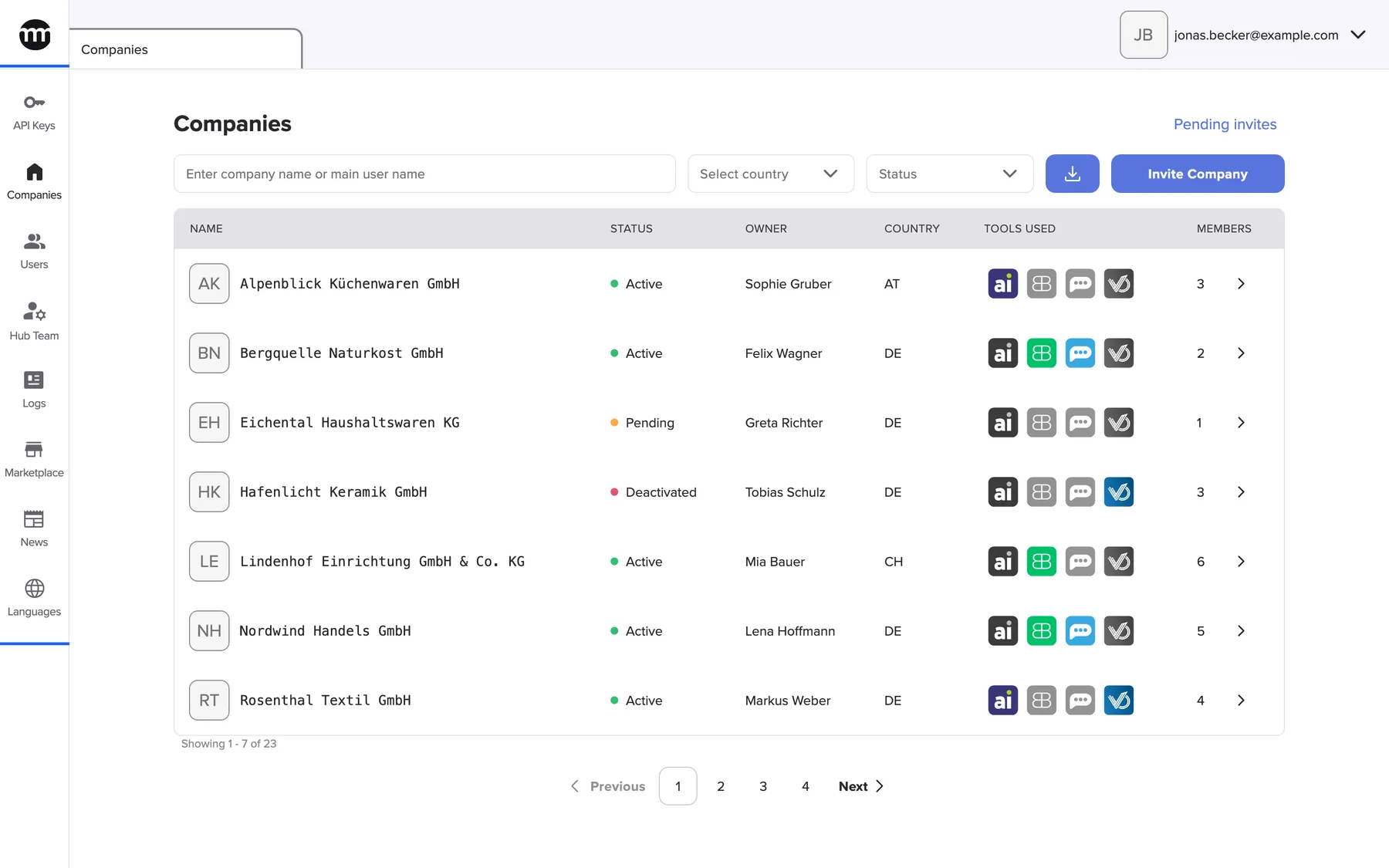
What this screenshot shows
- Screen
- Companies
- Highlighted
- each entry opens its area as a tab
- Also visible
- Tab strip with the Companies tab; Account button with the staff email at the top right
- Purpose
- the admin console layout
How the console works
Section titled “How the console works”- Sidebar. One entry per area your role may open. The comrce logo above the entries opens the News feed as customers see it.
- Tabs. Every area, record and form opens as a tab in the strip at the top, like browser tabs. Drag a tab to reorder it. Close it with its × or a middle click, or right-click for Close Others. The last open tab cannot be closed.
- Unsaved forms. Closing a tab with unsaved form changes asks first, in the dialog Unsaved changes. Your open tabs are remembered in this browser.
- Links. Each tab has its own address (
/?tab=…), so you can bookmark it or send it to a colleague. The browser’s back and forward buttons move between tabs. - Start tab. After signing in, you land on Companies if your role can see companies. The News Editor role lands on News, the two Marketplace roles on the Marketplace.
- Lists refresh themselves about once a minute. Changes made by colleagues show up without reloading.
Your account
Section titled “Your account”The account button at the top right shows your initials and email. Its menu has Settings, which opens your own Settings tab. Logout ends the session and returns to the sign-in page. If signing out fails, for example without a connection, you see Logout failed. You are still signed in. Check your connection and try again. and stay signed in.


What this screenshot shows
- Screen
- Companies
- Highlighted
- “Settings”: opens the Settings tab
- Also visible
- Menu items: Settings, Logout
- Purpose
- reaching your own settings
The comrce Hub tab
Section titled “The comrce Hub tab”A tab titled comrce Hub opens only through the direct link /?tab=landing. No sidebar entry or menu item opens it. It shows only one English line, in every language and role. The line reads “Invalid or missing URL (must start with http:// or https://)”. There is nothing to do on it, so close it.


What this screenshot shows
- Screen
- comrce Hub
- Highlighted
- “Invalid or missing URL (must start with http:// or https://)”: none
- Also visible
- Tab title: comrce Hub
- Purpose
- what the comrce Hub tab shows
The page at a glance
Section titled “The page at a glance”- Settings for staff: your profile, password, language and account deletion.
- Staff roles and what they can do: which role reaches which page and action, and which roles you can assign.
What you can do in the console
Section titled “What you can do in the console”- Look up and manage companies and their members: Companies.
- Find customer and team accounts: Users · the team list.
- Investigate what happened and who did it: Logs.
- Edit the Marketplace and publish News: Marketplace · News.
- Connect partner applications: API clients and third-party sign-in.
- Offer and update interface languages: Adding a language and importing translations.
The tasks that span several screens, such as bringing in a new customer company, are in the Guides.
Concepts
Section titled “Concepts”Who can use this
Section titled “Who can use this”- Who sees the console: every account with one of the seven staff roles. Customer accounts never see it.
- What you see in it: only the areas your role reaches. The table in Staff roles and what they can do shows which.
- What you need first: a staff account. It is created when a colleague invites you from Hub Team and you accept by email.