

A customer user's details
A user’s tab shows one customer user across all their companies: status, identity, two-factor state, companies and open sessions. Support staff use it to help a locked-out customer, impersonate them or check who is signed in. Open it from Users with the arrow in the user’s row. The arrow next to a name on a membership tab opens it too.
What you can do here
Section titled “What you can do here”- See who the user is and copy their ID. Name, email address and the user ID with a copy button. The screen at a glance.
- Get a customer back in. A table of the sign-in messages customers see, and where you fix each one. Get a customer back into their account.
- See the account status. A status line under the email address shows whether the account is in use. For an account scheduled for deletion, it adds the planned deletion date. Check the account status.
- Reset two-factor authentication. Disable 2FA switches 2FA off for a customer who lost their authenticator. Reset two-factor authentication.
- Work in the customer’s account. The impersonation card takes the customer’s service PIN and signs you in as them. Start an impersonation · Working in a customer’s account with a service PIN.
- See the user’s companies. One row per membership with role, status and last activity. Check the companies.
- See and end sessions. Every open session, including impersonations by staff, which you can end. Check the sessions.
- Read the user’s audit log. View Logs opens the log filtered to this person. Every control, explained.
The screen at a glance
Section titled “The screen at a glance”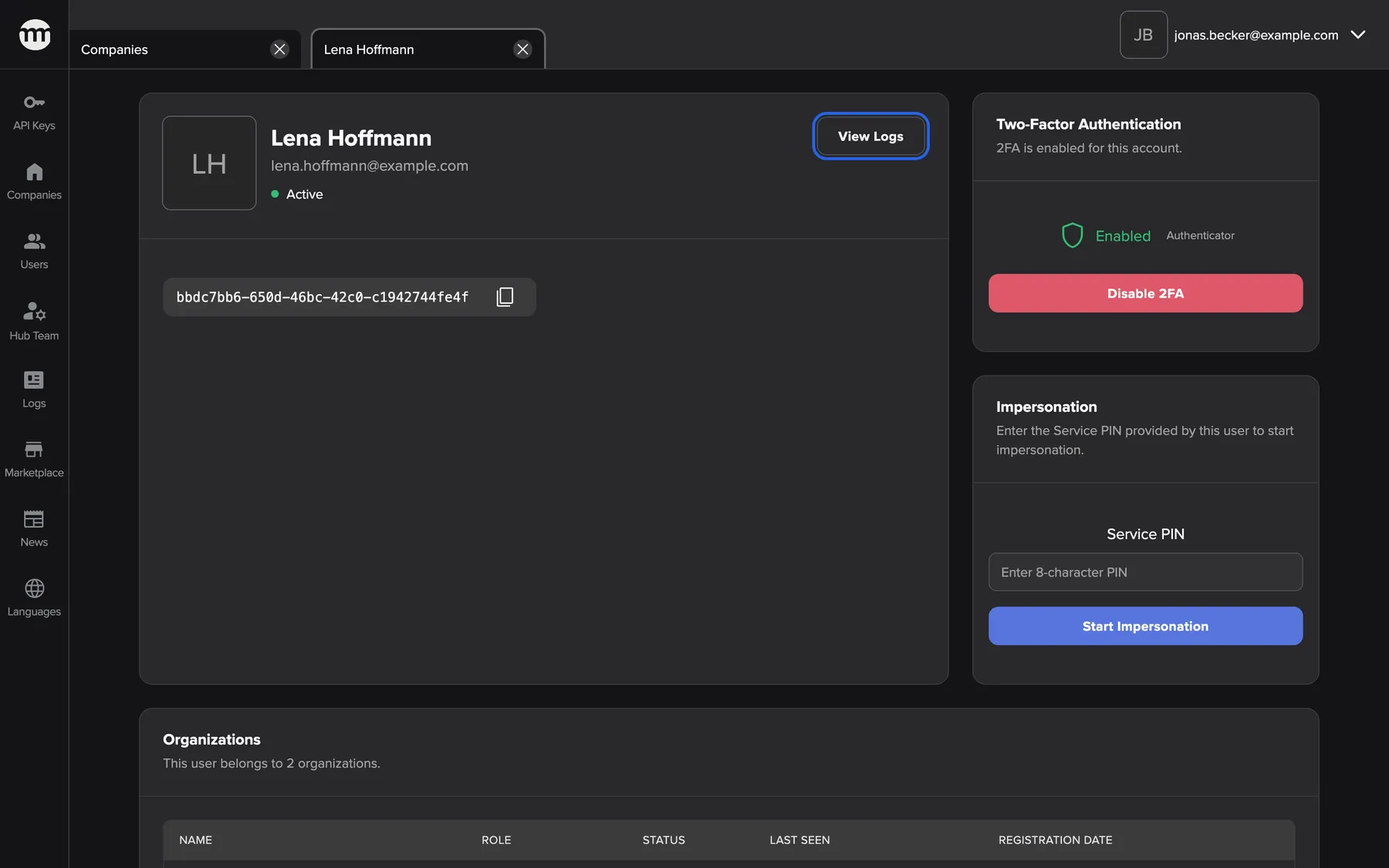

What this screenshot shows
- Screen
- Lena Hoffmann
- Highlighted
- “View Logs”: opens the audit log filtered to this user
- Also visible
- Status line Active; User ID with copy button; 2FA Enabled, Authenticator; Disable 2FA; Impersonation card
- Purpose
- the customer user at a glance
| Region | What it shows | What you do there |
|---|---|---|
| User card | Avatar, name, email, the status line, View Logs, the user ID with Copy id | Identify the user, check the status, open the log, copy the ID |
| Two-Factor Authentication card | Enabled with the method, or Not Enabled, and Disable 2FA | Reset 2FA |
| Impersonation card | The Service PIN field and Start impersonation | Start an impersonation |
| Organizations card | One row per company | Open a membership |
| Active sessions card | Open sessions with device, company and impersonating staff member | End an impersonation |
The tab is named after the user and reloads every 60 seconds.
Get a customer back into their account
Section titled “Get a customer back into their account”A customer can’t sign in and asks support for help? Most causes show on this tab or one click away. Ask for the exact message they see, then check in this order:
| What the customer sees | Where you check | What you do |
|---|---|---|
| Too many invalid verification attempts. Your account has been temporarily locked. Please try again later. | The user’s logs with View Logs: failed attempts in a row | The lock is temporary. The customer tries again later, or resets the password |
| They lost the phone with their authenticator app | The Two-Factor Authentication card | Confirm who they are, then reset two-factor authentication |
| No active organizations found. Your access may have been removed or the organization deleted. | The status line, then the Organizations card | Check the account status. A deactivated membership comes back with Activate |
| You are not active in this organisation | Their row in Organizations | Open the membership and let them back in |
| This organization is not active, please contact the owner. | The owner’s status on the company’s tab | The owner’s membership blocks the whole company. See A company’s details |
| Email not confirmed. | Nothing to change here | The customer confirms the address with the link from the confirmation email |
Every failed attempt is in Logs with its time. That tells you whether it is the customer mistyping or someone guessing.
Check the account status
Section titled “Check the account status”The status line under the email address sums up the account with a coloured dot and a label. comrce Hub takes the first status that applies:
| Status | When it shows |
|---|---|
| Scheduled for deletion (red dot) | A Super Admin approved the deletion of the account. The planned deletion date and time follow the label |
| Active | At least one membership is active |
| Pending | No membership is active, and at least one is pending |
| Deactivated | No membership is active or pending, and at least one is deactivated |
| Deleted | Every membership is deleted, or none is left |
The planned deletion date is the end of the 21-day grace period after the approval. Until then, a Super Admin can cancel the deletion with the link in the deletion email (Complete a user deletion). A deleted account no longer opens. Its tab shows Could not load user info.
Reset two-factor authentication
Section titled “Reset two-factor authentication”-
In the Two-Factor Authentication card, select Disable 2FA. The button is there only while 2FA is enabled.
-
Confirm with Confirm.


Disabling 2FA is the fix for a customer who lost their authenticator. What this screenshot shows
- Screen
- Lena Hoffmann
- Highlighted
- “Confirm”: disables 2FA and clears recovery codes
- Also visible
- Title Disable 2FA for this user?; Cancel button
- Purpose
- resetting a customer's two-factor authentication
-
comrce Hub shows 2FA disabled successfully., and the card changes to Not Enabled.
The reset applies to the user’s account, so it affects all their companies. It also deletes their recovery codes. Until they set up 2FA again in their settings, the user signs in with their password only. The Logs record the reset as User 2FA disabled with your email address.
Confirm the customer’s identity before you reset. The reset removes the second protection of the account.
Start an impersonation
Section titled “Start an impersonation”- Ask the customer for their service PIN, shown in the settings of their customer area.
- Type or paste it into Service PIN in the Impersonation card. Letters turn into capitals as you type.
- Select Start impersonation. You are signed in as the customer, in the company where they created the PIN. The app reloads as them.
The full rules are in Working in a customer’s account with a service PIN.
Check the companies
Section titled “Check the companies”The Organizations card lists every company the user belongs to, ten per page. The owner’s email address is under each company name. A green dot after the company name means the user is online there right now. Staff with the Supporter role or higher see the dot.


What this screenshot shows
- Screen
- Lena Hoffmann
- Highlighted
- “Rosenthal Textil GmbH”: the arrow opens the membership tab
- Also visible
- 2 organizations; Owner of Nordwind Handels GmbH, Member of Rosenthal Textil GmbH
- Purpose
- the user's memberships
Select the arrow in a row to open the user’s membership in that company. Only companies whose owner’s account is already deleted are left out of this table. A company whose owner is scheduled for deletion is still listed.
Check the sessions
Section titled “Check the sessions”The Active sessions card lists every open session of the user. It shows creation and expiry time, browser, device, company and user agent.
A session that a staff member opened by impersonation shows that staff member’s email address in the column Impersonated. Browser and device are those of the staff member’s browser. The row ends with End impersonation.
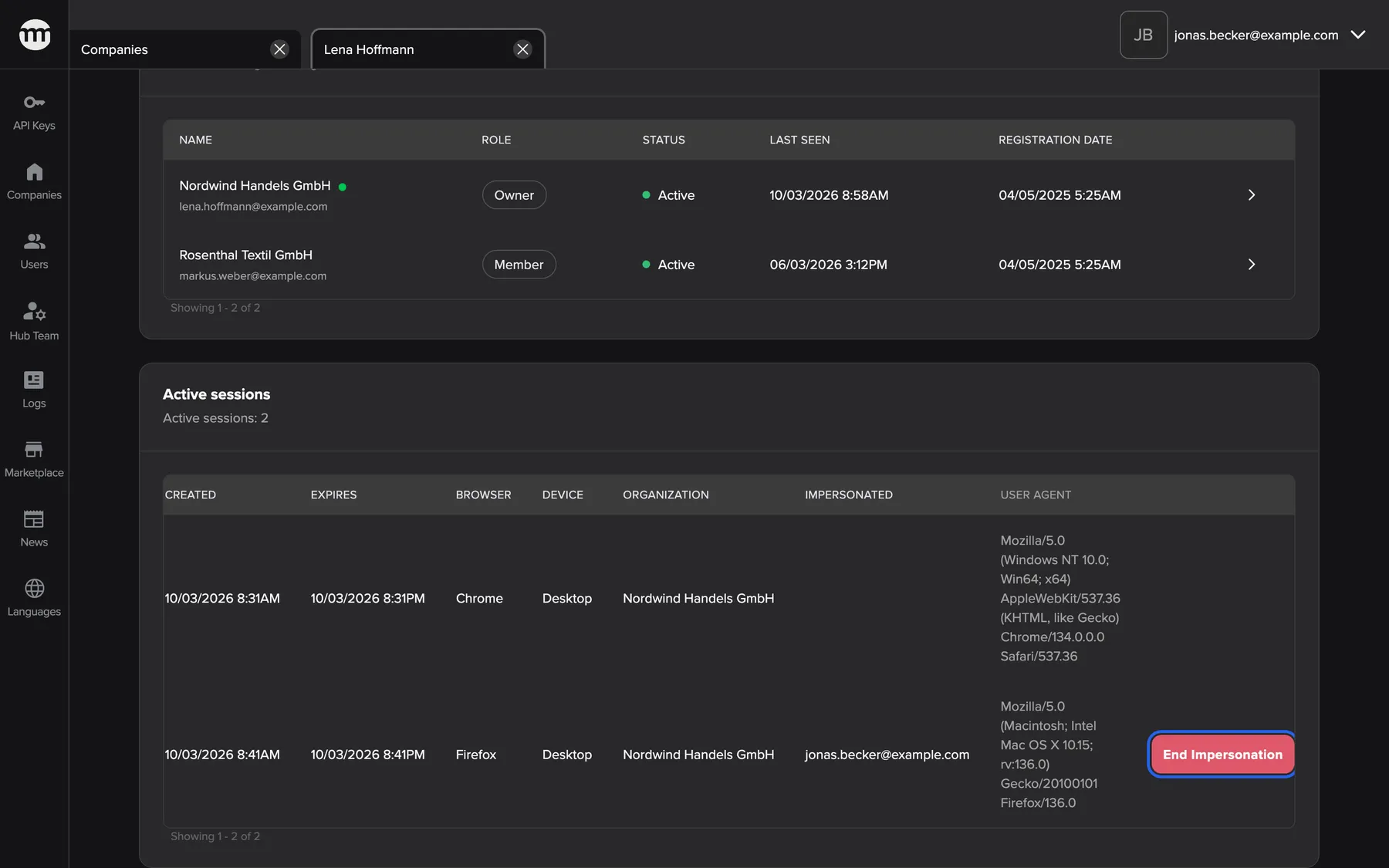

What this screenshot shows
- Screen
- Lena Hoffmann
- Highlighted
- “End impersonation”: revokes the impersonation session after confirmation
- Also visible
- 2 sessions; Impersonated by jonas.becker@example.com
- Purpose
- seeing and ending sessions
End impersonation asks for confirmation in a generic dialog, then ends that session. The staff browser using it is signed out of the customer account. The service PIN that opened it stops working. Staff with the Supporter role or higher can end any staff member’s impersonation of this user. The customer’s own sessions have no end button here.
When parts of the tab are missing
Section titled “When parts of the tab are missing”Two rules hide parts of the tab:
- The account is scheduled for deletion. The tab hides Disable 2FA, the impersonation card and the sessions card.
- The user has no active membership. The tab hides the impersonation card, because comrce Hub would refuse the PIN anyway. A pending, deactivated or deleted membership is not enough.


What this screenshot shows
- Screen
- Clara Wolf
- Highlighted
- “Nordwind Handels GmbH”: opens the membership
- Also visible
- Status line Deactivated; 2FA Not Enabled, no button; No Impersonation card
- Purpose
- when the impersonation card is hidden
Every control, explained
Section titled “Every control, explained”
Every control, explained
Section titled “Every control, explained”Disable 2FA
Section titled “Disable 2FA”The red button in the Two-Factor Authentication card. For the Supporter role and higher, only while 2FA is enabled and the account is not scheduled for deletion.
After confirmation, it switches 2FA off for the account, deletes the recovery codes and clears the method. It shows 2FA disabled successfully. or Error disabling 2FA..
A customer who lost their phone cannot sign in otherwise.
Impersonation card
Section titled “Impersonation card”The Impersonation card under the 2FA card. For the Supporter role and higher. It appears only when the account is not scheduled for deletion. At least one membership in the Organizations table must also be Active.
The Service PIN field takes up to 32 characters and turns letters into capitals. Start impersonation starts the impersonation. An empty field shows Please enter the Service PIN.
Seeing exactly what the customer sees is the fastest way to answer many questions.
End impersonation
Section titled “End impersonation”The red button at the end of an impersonation session row. For the Supporter role and higher.
After confirmation, it ends that impersonation session and invalidates the PIN that opened it. It shows Impersonation ended successfully or Failed to end impersonation.
Support can close a session that a colleague left open, or end one at the customer’s request.
View Logs
Section titled “View Logs”The outlined button at the top right of the user card. For the Supporter role and higher.
Opens the audit log filtered to this user, across all their companies, for actions of customer users.
It shows what the user did and what was done to their account. That includes actions staff took while impersonating them.
Organizations table
Section titled “Organizations table”| Column | What it shows | Why |
|---|---|---|
| Name | The company’s name, the online dot (Supporter role and higher) and the owner’s email | Know which company, and whom to ask |
| Role | Owner, Member or the company role Partner | Role in that company |
| Status | The membership status | Can the user work there? |
| Last seen | Last activity in that company | Is the account in use? |
| Registration date | When the membership began, and the arrow to open it | Open the membership |
Sessions table
Section titled “Sessions table”| Column | What it shows | Why |
|---|---|---|
| Created, Expires | When the session started, and when it ends without activity | Spot old sessions |
| Browser, Device | Browser, and device type or operating system | Recognise the user’s devices, or the staff browser of an impersonation |
| Organization | The company the session is signed in to | Match a problem to a company |
| Impersonated | The staff member’s email for impersonation sessions | Know who is in the account |
| User Agent | The full browser identification | Technical detail for the development team |
The 2FA method appears as stored: Authenticator or Email.
Other controls on this page
| Control | What it does | Why |
|---|---|---|
| Copy id next to the user ID | Copies the ID to the clipboard and shows Id copied to clipboard | The ID identifies the user in messages to the development team, and the Users search finds it |
| Cancel in a confirmation dialog | Closes the dialog without a change | Back out of a reset or an ended session |
Who sees what
Section titled “Who sees what”
Who sees what
Section titled “Who sees what”What each role can do on this tab:
- As an Partner, you can read the user card and status line, the ID, the 2FA state, companies and sessions.
- As a Supporter, Admin or Super Admin, you can also open the logs and see online dots. You can reset 2FA, impersonate and end impersonations.
| Part of the screen | Partner | Supporter | Admin / Super Admin |
|---|---|---|---|
| User card, status line, ID, 2FA state, organizations, sessions | yes | yes | yes |
| View Logs, online dots | no | yes | yes |
| Disable 2FA | no | yes | yes |
| Impersonation card, End impersonation | no | yes | yes |


What this screenshot shows
- Screen
- Lena Hoffmann
- Highlighted
- “2FA is enabled for this account.”: none
- Also visible
- No View Logs; No Disable 2FA; No Impersonation card
- Purpose
- what the staff role Partner sees
Other staff roles who open a user by link see Could not load user info.
What you need to know
Section titled “What you need to know”
What you need to know
Section titled “What you need to know”| Topic | Fact |
|---|---|
| Scope | One person across all their companies. |
| 2FA reset | Account-wide. It deletes recovery codes and is logged. |
| Scheduled for deletion | The status line shows the planned deletion date. No 2FA reset, no impersonation, no sessions card. |
| No active membership | No impersonation card. 2FA reset and sessions stay available. |
| Hidden companies | Only companies whose owner’s account is deleted are not listed. |
| Deleted accounts | The tab no longer opens. |
Frequently asked questions
Section titled “Frequently asked questions”
Frequently asked questions
Section titled “Frequently asked questions”Why is the Disable 2FA button missing?
Section titled “Why is the Disable 2FA button missing?”Disable 2FA appears only when the user has 2FA enabled and the account is not scheduled for deletion. You also need the Supporter role or higher. The staff role Partner never sees it.
Does disabling 2FA sign the user out?
Section titled “Does disabling 2FA sign the user out?”No. The reset switches off 2FA for the account and deletes the recovery codes, but existing sessions stay open. The next sign-in asks only for the password, until the user sets up 2FA again.
Why is there no impersonation card for this user?
Section titled “Why is there no impersonation card for this user?”The card shows for staff with the Supporter role or higher. The user also needs at least one active membership, and the account must not be scheduled for deletion. Check the status line under the email address and the Status column of the Organizations table.
When will an account that is scheduled for deletion be deleted?
Section titled “When will an account that is scheduled for deletion be deleted?”The status line on the user’s tab shows the planned deletion date and time. It is 21 days after a Super Admin approved the deletion. The nightly deletion run after that date removes the account.
Who is the email address in the Impersonated column?
Section titled “Who is the email address in the Impersonated column?”It is the comrce staff member who opened that session by impersonation. Only impersonation sessions show an address there. The customer’s own sessions leave the column empty.
Can I end the customer’s own sessions here?
Section titled “Can I end the customer’s own sessions here?”No. The end button appears only on impersonation sessions. Customers end their own sessions in their account settings. Deactivating a membership also ends their sessions in that company.
Why does a company the user belongs to not appear?
Section titled “Why does a company the user belongs to not appear?”The Organizations table leaves out companies whose owner’s account is deleted. Deleted memberships still appear, with the status Deleted. So do companies whose owner is only scheduled for deletion.
Why are browser and device empty for an impersonation session?
Section titled “Why are browser and device empty for an impersonation session?”Impersonation sessions record the browser and device of the staff member who started them. Older impersonation sessions were stored without that information, so their cells stay empty. The staff member’s email address in the Impersonated column identifies the session in both cases.
What does the 2FA method next to Enabled mean?
Section titled “What does the 2FA method next to Enabled mean?”It is the stored method of the user’s two-factor authentication. Authenticator means an authenticator app, and Email means codes sent by email. The value appears as stored, without translation.
Troubleshooting
Section titled “Troubleshooting”
Troubleshooting
Section titled “Troubleshooting”| Symptom | What to check |
|---|---|
| The tab shows Could not load user info | Your role must be Partner or higher. Otherwise the account may be deleted. |
| Error disabling 2FA. | Reload the tab. 2FA may already be off. |
| The impersonation card is missing | Check your role (Supporter or higher) and the status line. The account must not be scheduled for deletion, and at least one membership must be active. |
| Failed to end impersonation | The session may have ended already. Reload the tab. |
| The user says they still need a code after the reset | They may be signing in to a different account. Compare the email address. |