

Working in a customer's account with a service PIN
Impersonation lets support sign in to a customer’s account and company to see exactly what they see. The customer gives consent by reading out a short service PIN from their settings. The Logs record who did it, when and in which company. The customer can end the session at any time.
What it does
Section titled “What it does”Customer screenshots and descriptions are slow and often miss the detail that matters, and sharing passwords is forbidden. Impersonation gives support a way into the customer’s view that the customer controls and that leaves a trail.
The customer finds an eight-character service PIN in their settings. A support person types it into the user’s tab in the admin console. That opens a session as that customer, in the company where the PIN was created.
- The PIN is the customer’s consent. Without it, no staff role can open the account. The customer’s consent.
- Support finds the customer by pasting the PIN into the Users search. Find the customer.
- Wrong PINs lock both the staff member and the customer’s PIN checks for a few minutes. The lockout.
- While impersonating, you work as the customer, with a few actions blocked so that you cannot lock them out. While you are impersonating.
- Support, or the customer, ends the session with one button. The way back.
The audit log records every attempt, success, failure, lockout and end. Every action taken while impersonating carries the staff member’s identity.
Before you start
Section titled “Before you start”| Requirement | Details |
|---|---|
| Staff role | Supporter, Admin or Super Admin. The staff role Partner and the content roles cannot impersonate. |
| Your own session | Fully signed in, including two-factor authentication if you use it. You are not already impersonating someone. |
| The customer’s PIN | Shown to the customer in their settings, in the card Service PIN, with Copy PIN. |
| An active customer | The customer’s membership in the PIN’s company must be Active, and the company’s owner must be active and not scheduled for deletion. The customer’s own account must not be scheduled for deletion either. |
| Cost | None. |
Understanding the service PIN
Section titled “Understanding the service PIN”| Property | Value | Example |
|---|---|---|
| Format | Eight characters: the letter S, then seven random capital letters or digits | S7K4P2QX |
| Validity | 14 days from creation | Created 03/03/2026, valid until 17/03/2026 |
| Scope | One user in one company. The session opens that company | Lena Hoffmann’s PIN from Nordwind Handels GmbH opens Nordwind Handels GmbH |
| Reuse | Usable for several impersonations until it expires | Two colleagues can use it one after the other |
| Invalidation | Ending an impersonation session deletes the PIN that opened it | After End impersonation, the customer has a new PIN |
How comrce Hub decides
Section titled “How comrce Hub decides”When you select Start impersonation, comrce Hub checks, in this order:
- You are signed in as staff with the Supporter role or higher and fully authenticated. You are not trying to impersonate yourself.
- Neither you nor the customer is locked out by recent failed attempts.
- The PIN belongs to this customer and has not expired.
- The customer’s membership in the PIN’s company is Active. The company’s owner is active and not scheduled for deletion.
Only when every check passes does it open the session. Every refusal at steps 2 to 4 shows the same message, The provided PIN is invalid.. The exact reason is in the audit log.
What cannot be impersonated
Section titled “What cannot be impersonated”- comrce staff accounts. Only customer users have PINs.
- Customers without an active membership, or whose account is scheduled for deletion. The console hides the card for them.
- A company other than the one the PIN was created in, even if the customer belongs to several.
- Anyone, while you are already impersonating someone else.
Setting it up in four steps
Section titled “Setting it up in four steps”-
Get the PIN. Ask the customer to open their settings and read out or send the PIN from the card Service PIN. They should be signed in to the company they need help with.
-
Find the customer. Open Users and paste the PIN into the search. The list shows exactly that customer. Open them with the arrow.
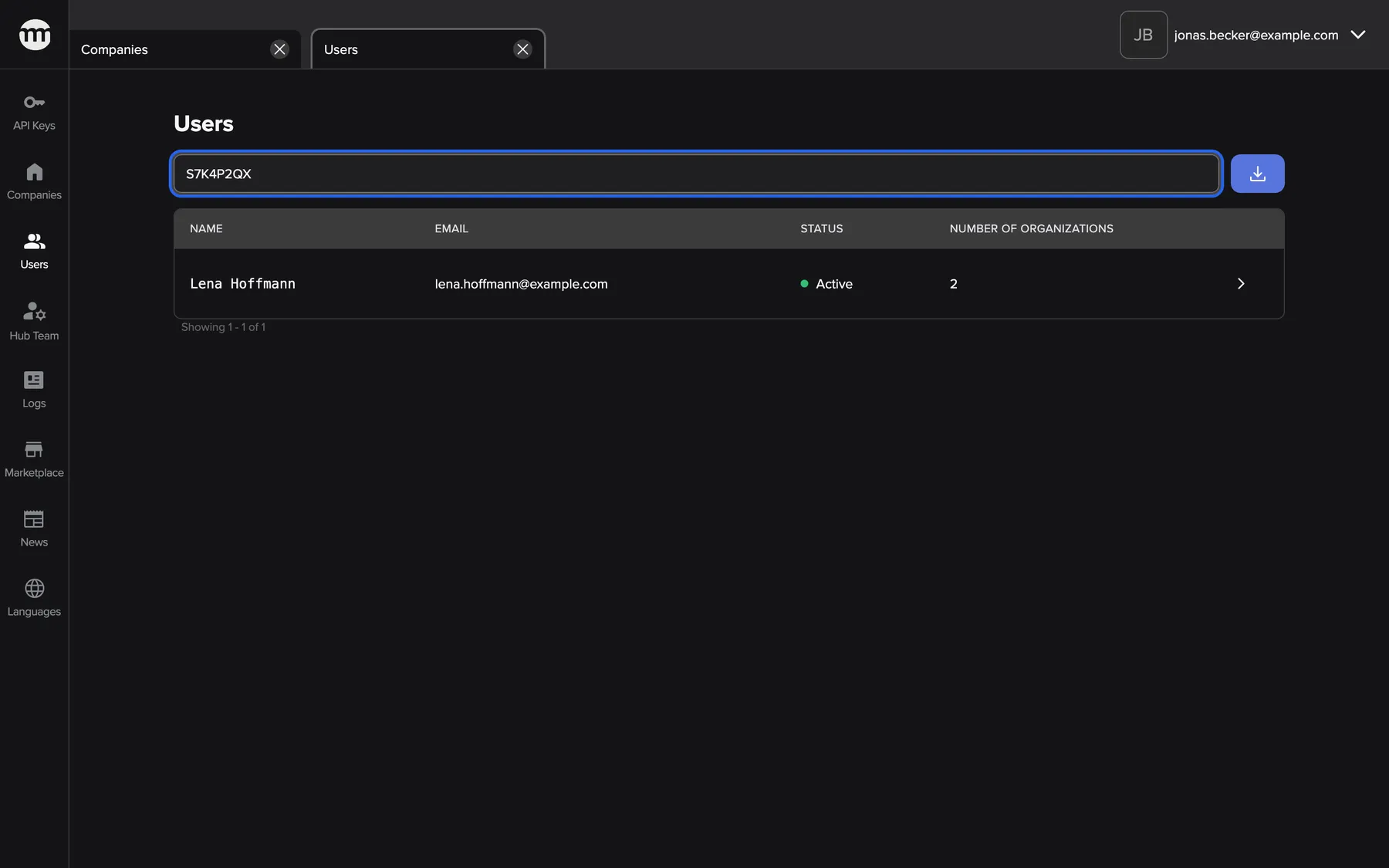

The PIN identifies the customer, so you open exactly the account that asked for help. What this screenshot shows
- Screen
- Users
- Highlighted
- “Search users”: finds the user who owns the PIN
- Also visible
- One row Lena Hoffmann
- Purpose
- finding the customer by Service PIN
-
Start. In the card Impersonation, enter the PIN in Service PIN and select Start impersonation. The app reloads as the customer and shows Impersonation started.
-
End. When you are done, select End impersonation in the top bar. You are back in the admin console as yourself.
How to work in the account so the customer feels in good hands: Help a customer from inside their account.
Every setting, explained
Section titled “Every setting, explained”
Every setting, explained
Section titled “Every setting, explained”Impersonation has no settings of its own. These are the parts that control it.
The lockout, the guard against guessing
Section titled “The lockout, the guard against guessing”No control. comrce Hub counts failed PIN checks on the staff member and on the customer separately.
Each failed check adds one to both counters. At 5 failures, the staff member or the customer is locked for 5 minutes. While either is locked, every attempt between them is refused, even with the right PIN.
A successful start resets both counters, and an expired lockout resets on its own. On top of that, the sign-in service accepts at most 20 requests per minute of this kind from one source.
Nobody should guess an eight-character PIN by trying. That holds for one staff member against many customers, and for many staff against one customer.
| Failed attempts in a row | Result of the next attempt |
|---|---|
| 4 | Checked normally |
| 5 | Lockout starts: refused for the lockout time, even with the right PIN |
| after the lockout time | Checked normally again |
Service PIN, the customer’s consent
Section titled “Service PIN, the customer’s consent”The customer’s settings in the customer area. The card Service PIN shows Current PIN, Valid until and Copy PIN. Only customers with a company selected see it.
The card shows the newest valid PIN for the user and their current company. If there is none, comrce Hub creates one. There is no button to create a new PIN. The same PIN stays until it expires or until an impersonation that used it is ended.
The validity shows date and time in the format of the customer’s language. In English that reads 17/03/2026 9:00AM, in German 17.03.2026 09:00. Expired PINs are removed nightly at midnight UTC.
The customer decides when support may enter, and the PIN only works for their account in that company.


What this screenshot shows
- Screen
- Settings
- Highlighted
- “Copy PIN”: copies the service PIN to the clipboard
- Also visible
- PIN S7K4P2QX; Valid until date; Impersonation session of jonas.becker@example.com
- Purpose
- where the customer finds the service PIN
Start impersonation, the staff side
Section titled “Start impersonation, the staff side”The user’s tab, card Impersonation, with the field Service PIN and the button Start impersonation. For the Supporter role and higher. Hidden when the customer has no active membership or the account is scheduled for deletion.
Turns what you type into capitals, ignores surrounding spaces and exchanges the PIN for a session as the customer. An empty field shows Please enter the Service PIN. A refusal shows The provided PIN is invalid.. On success, the open admin tabs close and the app reloads as the customer.
Starting from the user’s tab makes you check that the PIN’s owner is the person you expect.


What this screenshot shows
- Screen
- Lena Hoffmann
- Highlighted
- “Start impersonation”: exchanges the PIN for a customer session
- Also visible
- Service PIN field with S7K4P2QX; 2FA card above
- Purpose
- starting an impersonation


What this screenshot shows
- Screen
- Lena Hoffmann
- Highlighted
- “The provided PIN is invalid.”: none
- Also visible
- Service PIN field with S7K4P2QB
- Purpose
- a refused impersonation
End impersonation, the way back
Section titled “End impersonation, the way back”Three places:
- End impersonation in the top bar while impersonating, or Finish on narrow screens
- the same button in the sessions table on the user’s tab, for the Supporter role and higher
- the customer’s own settings.
Ends the impersonation session and deletes the PIN that opened it. From the top bar, you return to your staff session with Impersonation ended successfully. When a colleague or the customer ends it, your browser is signed out of the customer account. It returns to your staff session automatically.
The session must end cleanly, and both sides must be able to end it.
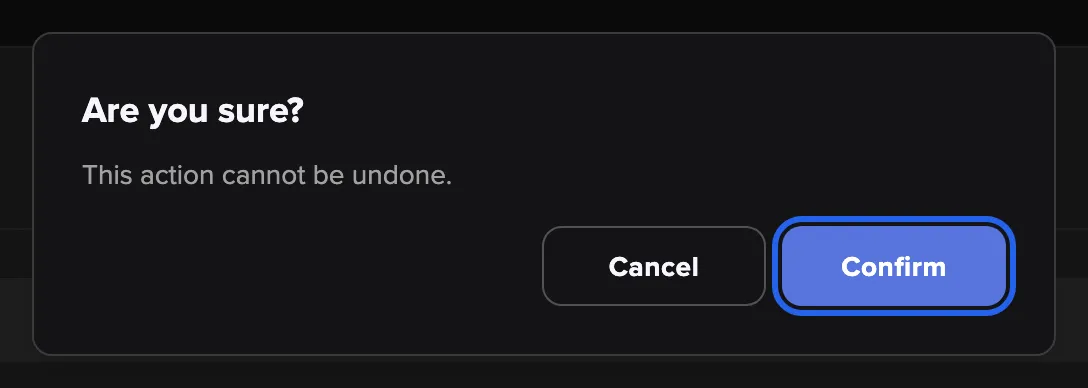

What this screenshot shows
- Screen
- Lena Hoffmann
- Highlighted
- “Confirm”: revokes the session and deletes its PIN
- Also visible
- Generic title Are you sure?; Cancel button
- Purpose
- ending someone's impersonation session
Find the customer by PIN
Section titled “Find the customer by PIN”Users, the search field with the placeholder Enter user name, email, id or impersonation pin.
When the whole search text equals a valid PIN, the list shows only its owner. Case and surrounding spaces do not matter. Expired PINs count as ordinary search text.
The PIN identifies the account unambiguously, even when the customer has a common name.
Other settings on this page
| Control | What it does | Why |
|---|---|---|
| Copy PIN on the customer’s PIN card | Copies the PIN for the customer | They can paste it into a chat instead of reading it out |
How the settings combine
Section titled “How the settings combine”| Situation | Can you impersonate? |
|---|---|
| Valid PIN, customer and owner active, you have the Supporter role or higher | yes |
| PIN expired or mistyped | no, The provided PIN is invalid. |
| Customer’s membership in the PIN’s company deactivated, or owner not active | no, same message |
| Customer has no active membership at all, or the account is scheduled for deletion | no, the card is not shown |
| You or the customer locked out | no, same message, until the lockout ends |
| You have the staff role Partner | no, the card is not shown |
| You are already impersonating | no, end the current session first |
Impersonation in the admin console and the customer area
Section titled “Impersonation in the admin console and the customer area”| Indicator | Meaning |
|---|---|
| End impersonation in the top bar | You are working as a customer |
| Staff email in the Impersonated column | That session is an impersonation by this staff member |
| Impersonated badge under the customer’s email in their Logs | Staff took the action on the customer’s behalf |
While you are impersonating
Section titled “While you are impersonating”The app looks like the customer’s: their tools, dashboard and account menu, in the company of the PIN. There is no banner. These parts differ from what the customer sees:
| Where | What you see |
|---|---|
| Top bar | End impersonation left of the customer’s avatar, or Finish on narrow screens. The customer’s email and company name follow. The company name is plain text, not a company switcher |
| Account menu | Only Settings. Logout is missing, because it would end the customer’s session rather than yours |
| Settings tab, Security section | Change Email, the Service PIN card and the Active sessions card are hidden. Change Password stays |
| Settings tab, links at the bottom | The legal links and Cookie Settings are hidden. The app’s version number appears instead |
| Support widget | Help & Support and Talk to experts are not offered |
| Prompts at the start | No suggestion to set up 2FA, no request to change the password and no cookie dialog |


What this screenshot shows
- Screen
- Nordwind Handels GmbH
- Highlighted
- “End impersonation”: ends the impersonation and restores the staff session
- Also visible
- Customer sidebar with tools; Company name without switcher
- Purpose
- working inside a customer's account
Why: you can see everything the customer sees, but you cannot widen your access or lock the customer out.
What you can and cannot do as the customer
Section titled “What you can and cannot do as the customer”You act with the customer’s permissions in the PIN’s company. comrce Hub refuses these actions during an impersonation:
| Action | What happens |
|---|---|
| Switching to another company | Refused with Company switching is not available during impersonation. |
| Changing the sign-in email | Change Email is hidden |
| Seeing the service PIN | The card is hidden |
| Listing or ending the customer’s sessions, signing out other devices | Refused |
| Starting, confirming or accepting a company ownership transfer | Refused. The confirmation and acceptance links show that they are meant for another user |
| Approving a sign-in to a tool with comrce Hub | The approval page shows This account cannot use external SSO. |
These actions still work, so take them only at the customer’s request:
- changing the customer’s name, photo and password
- exporting their data with Export Data
- sending a deletion request with Delete Account
A password change signs out every session of the account, including yours. A deletion request only sends a confirmation email to the customer’s mailbox. Nothing is deleted unless the customer confirms it.
What the customer sees
Section titled “What the customer sees”While your session runs, the customer’s Settings tab shows the Active sessions card. Each row has the Impersonated badge, your staff email address, your browser or device and the start time. The row ends with End impersonation, so the customer can end your session at any time.
In the customer’s company Logs, every event from your session shows the customer’s email address with the Impersonated badge underneath. The customer’s colleagues with access to the Logs see it too.
Why: the customer always knows who is in their account and can withdraw access without asking support.
The user’s sessions
Section titled “The user’s sessions”The user’s tab lists every impersonation session. Each row shows the staff member’s email address, browser and device, and an end button.


What this screenshot shows
- Screen
- Lena Hoffmann
- Highlighted
- “jonas.becker@example.com”: none
- Also visible
- End impersonation button in the row
- Purpose
- who is impersonating a customer right now
Why: anyone in support can see who is in a customer’s account and end the session.
When the card is missing
Section titled “When the card is missing”The console hides the impersonation card when the customer has no active membership or is scheduled for deletion.


What this screenshot shows
- Screen
- Clara Wolf
- Highlighted
- “2FA is disabled for this account.”: none
- Also visible
- No Impersonation card; Status line Deactivated; Membership Deactivated
- Purpose
- when impersonation is not offered
Why: comrce Hub would refuse the PIN anyway. No membership is active, or the account is about to be deleted.
Impersonation in the audit log
Section titled “Impersonation in the audit log”Logs, or View Logs on the user’s tab.
comrce Hub writes these entries:
- Impersonation by PIN succeeded for every start
- Impersonation by PIN failed with the reason for every refusal
- Impersonation PIN lockout triggered when a lockout begins
- Impersonation PIN attempt blocked for attempts during a lockout
- Token revoked when the session ends.
Every action you take while impersonating appears under the customer, with the impersonated marker and your identity.
The customer, and comrce, must be able to see afterwards exactly what support did.
- A customer asks who changed their company data last week → filter by the user and look for impersonated entries.
- A start keeps failing → the failure entry names the reason, such as an expired PIN or an inactive membership.
- A customer reports a lockout → the lockout entry shows the counters and when it ends.
What you need to know
Section titled “What you need to know”
What you need to know
Section titled “What you need to know”| Topic | Fact |
|---|---|
| PIN format | S plus seven capital letters or digits. |
| Scope | One user in one company. |
| Reuse | Until expiry, unless a session using it is ended. |
| Who | Supporter, Admin, Super Admin. |
| Messages | One message for every refusal. The reasons are in the audit log. |
| Signs of impersonation | Only the end button in the top bar. There is no banner. |
| Session details | Your browser and device are recorded and shown to the customer, with your staff email address. |
| Customer control | The customer can see and end impersonation sessions in their settings. |
| Blocked actions | Company switch, email change, PIN, sessions, ownership transfers and tool sign-in approvals. |
Frequently asked questions
Section titled “Frequently asked questions”
Frequently asked questions
Section titled “Frequently asked questions”General
Section titled “General”Who can impersonate a customer?
Section titled “Who can impersonate a customer?”Staff with the Supporter, Admin or Super Admin role. The impersonation card on the user’s tab is hidden for every other role. A PIN from any other role is refused with Impersonation is not allowed..
Can I impersonate a customer without their PIN?
Section titled “Can I impersonate a customer without their PIN?”No. Every start needs the service PIN from the customer’s settings. It is the customer’s consent, and there is no override for any staff role.
Where does the customer find their service PIN?
Section titled “Where does the customer find their service PIN?”In the settings of the customer area, in the card Service PIN. It shows the PIN, its validity and Copy PIN. The card appears when the customer is signed in to a company.
Which company do I see when I impersonate?
Section titled “Which company do I see when I impersonate?”The company in which the customer created the PIN. Each PIN belongs to one user in one company. If the customer needs help in another company, they switch to it and give you the PIN shown there.
Is there a banner that shows I am impersonating?
Section titled “Is there a banner that shows I am impersonating?”No separate banner. The sign is the End impersonation button in the top bar, next to the customer’s avatar and email address. The account menu also has no sign-out entry while you impersonate.
How long is a service PIN valid?
Section titled “How long is a service PIN valid?”A service PIN is valid for 14 days from the moment comrce Hub created it. The customer’s settings show the end date as Valid until. After that, a new PIN appears the next time they open their settings.
Can the customer create a new PIN?
Section titled “Can the customer create a new PIN?”There is no button for it. The same PIN stays until it expires, or until an impersonation session that used it is ended. Ending deletes it, and the settings then show a new PIN.
Can a PIN be used twice?
Section titled “Can a PIN be used twice?”Yes, until it expires or a session that used it is ended. Two staff members can start sessions one after the other with the same PIN. That works as long as no one has ended a session opened with it.
Does the PIN have to be typed in capitals?
Section titled “Does the PIN have to be typed in capitals?”No. The PIN field on the user’s tab turns letters into capitals and ignores spaces around the PIN. The Users search does the same.
Failures and lockout
Section titled “Failures and lockout”Why does a correct PIN show “The provided PIN is invalid”?
Section titled “Why does a correct PIN show “The provided PIN is invalid”?”The same message covers several causes. It appears for a lockout after failed attempts, an expired PIN and a PIN of another customer. It also appears when the customer’s membership or company is not active. Check the customer’s status on the user’s tab and wait for any lockout to end. Then read the failure reason in the audit log.
How does the lockout work?
Section titled “How does the lockout work?”Every failed check counts against you and against the customer. After five failures, whoever reached the limit is locked for 5 minutes. During that time, every attempt involving them is refused, even with the right PIN. A successful start resets both counts.
I mistyped the PIN for one customer. Am I locked for other customers?
Section titled “I mistyped the PIN for one customer. Am I locked for other customers?”Only after five failures in total. Your own count includes failures against any customer. So five failures spread over several customers also lock you for the lockout time.
Why can’t I start an impersonation while one is running?
Section titled “Why can’t I start an impersonation while one is running?”You can impersonate only one customer at a time. First end the current session with End impersonation in the top bar. The user’s tab then lets you start a new one.
While impersonating
Section titled “While impersonating”Can I switch the customer’s company while impersonating?
Section titled “Can I switch the customer’s company while impersonating?”No. The company name in the top bar is not a switcher during impersonation, and company switches are refused. End the session and ask for the PIN of the other company.
Can I change the customer’s password or 2FA while impersonating?
Section titled “Can I change the customer’s password or 2FA while impersonating?”You can change the password with Change Password on the Settings tab. That signs out every session of the account, including your impersonation. The Settings tab has no 2FA control. For a 2FA reset, use Disable 2FA on the user’s tab in the admin console. Change nothing without the customer’s request.
What does the customer see while I impersonate?
Section titled “What does the customer see while I impersonate?”The customer’s Settings tab shows the Active sessions card. It lists your staff email address, your browser or device and the start time. The customer can end your session there. Afterwards, their Logs show every action from your session with the Impersonated badge.
Are my actions recorded under the customer’s name?
Section titled “Are my actions recorded under the customer’s name?”They are recorded on the customer’s account and company. Each one is marked as impersonated and linked to your staff identity. So the audit log shows that you, not the customer, took them.
Ending
Section titled “Ending”How do I stop impersonating?
Section titled “How do I stop impersonating?”Select End impersonation in the top bar. comrce Hub ends the session and deletes the PIN that opened it. You return to your own staff session with Impersonation ended successfully.
Can the customer end my session?
Section titled “Can the customer end my session?”Yes. The customer sees impersonation sessions in their settings and can end them. Your browser is then signed out of the customer account and returns to your staff session automatically.
What if a colleague left an impersonation session open?
Section titled “What if a colleague left an impersonation session open?”Open the customer’s tab under Users. Find the session with the colleague’s email in the Impersonated column and select End impersonation. Staff with the Supporter role or higher can end it.
Data and privacy
Section titled “Data and privacy”What does comrce Hub record about an impersonation?
Section titled “What does comrce Hub record about an impersonation?”It records the start with the customer, company and staff member, and every refused attempt with its reason. It records lockouts, blocked attempts, the session with the staff email, and the end. Actions during the session carry the staff member’s identity.
Do tools like Billbee know I am impersonating?
Section titled “Do tools like Billbee know I am impersonating?”comrce Hub adds an impersonation marker to the tool links it opens during an impersonation. What a tool does with that marker is up to the tool itself. You cannot approve a sign-in to a tool with comrce Hub while impersonating. The approval page shows This account cannot use external SSO..
Troubleshooting
Section titled “Troubleshooting”
Troubleshooting
Section titled “Troubleshooting”| Symptom | What to check |
|---|---|
| The provided PIN is invalid. | In order: the PIN read out again, its validity date, and the customer’s membership status in that company. Then the owner’s status, failed attempts in the last few minutes, and the failure reason in the audit log. |
| The PIN search on the Users screen finds nobody | Paste only the eight characters. The PIN may have expired, or an ended session may have deleted it. |
| The impersonation card is missing | Check your role (Supporter or higher) and the status line on the user’s tab. At least one membership must be active, and the account must not be scheduled for deletion. |
| Start impersonation is unavailable | You are already impersonating someone. End that session first. |
| Impersonation is not allowed. | Your staff role cannot impersonate. |
| Missing admin refresh token or a sign-in message | Your staff session expired. Sign in again and retry. |
| You see the wrong company | The PIN came from another company. End the session and ask for the PIN from the right one. |
| You were thrown back to the console | The customer or a colleague ended the session. |
| Failed to end impersonation | Reload, because the session may already be over. If you stay in the customer account, ask a colleague to end the session from the user’s tab. |
| The customer’s settings show no PIN card | The customer must be signed in to a company. Staff accounts and impersonated sessions never show it. |
| A tool sign-in shows This account cannot use external SSO. | Expected while impersonating. Tool sign-ins need the customer’s own session. |