

Add a partner to the Marketplace and connect their app
A new partner joins comrce, and sellers should find them in the Marketplace, in their language. You create the listing, fill the partner page and translate it. If the partner has an app, you register it too. Sellers then sign in to it with their comrce Hub account. Sellers see nothing until the whole path is visible and filled.
Before you start
Section titled “Before you start”| You need | Where it lives |
|---|---|
| The Marketplace Editor, Admin or Super Admin role | Your team member page under Hub Team |
| The Super Admin role, for the app part only | Only that role sees API Keys |
| The listing data | From the partner: name, a short description of up to 180 characters, contact email, website and phone |
| The page content | From the partner: a square PNG or JPEG logo of up to 8 MB, an about text of up to 1,500 characters, and a category |
| For an app: redirect URIs and the data it needs | From the partner: the exact https:// addresses for staging and production, and which scopes they need |
| A secure channel to the partner, for an app | A password manager share or similar. The client secret is shown once. |
| Nothing to pay | Listings and API clients cost nothing |
-
Prepare a hidden section and service (only if new). If the partner fits no existing service, go to Marketplace and select New section. Switch visibility off while you build. Then add a service with New service. Create or edit a section and Create or edit a service have every field.

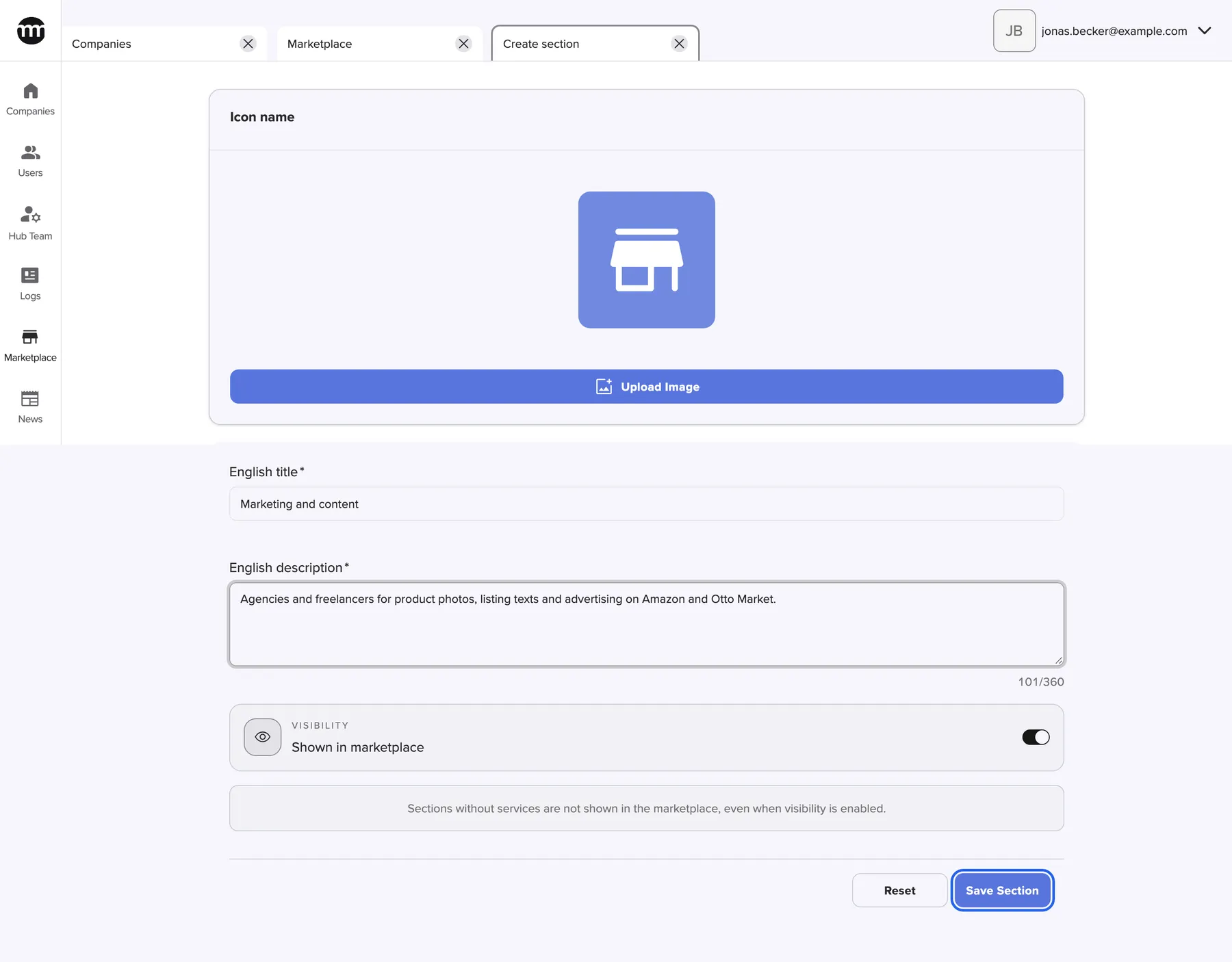
A new section needs an English title and description. Other languages come from the Marketplace translations. What this screenshot shows
- Screen
- Create section
- Highlighted
- “Save section”: creates the section
- Also visible
- English title: Marketing and content; Visibility switch; Icon card with Upload image
- Purpose
- preparing a section for a new partner
-
Register the partner’s app (only if they have one). Open API Keys and select Create New Client. In Display Name, type the name sellers will recognise on the consent page. Enter the partner’s staging redirect URI first, and only the scopes for the first use case. Then select Save. Create or edit an API client explains each field.
-
Send the secret, once. The dialog Client Secret opens. Select Copy and send the secret and the client ID through your secure channel. Then close with Close. Esc or a click outside also closes it, and the secret is gone.
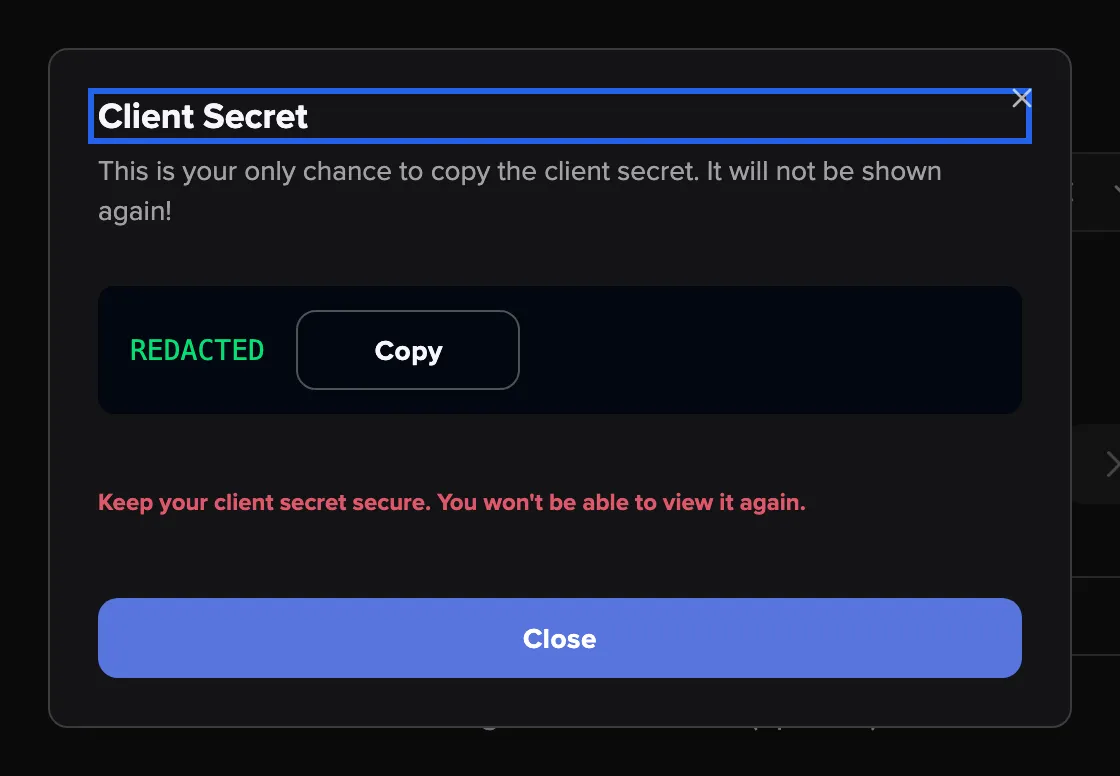

Copy the client secret now. It is shown exactly once and cannot be displayed again. What this screenshot shows
- Screen
- Create New SSO API Client
- Highlighted
- “Client Secret”: shows the client secret, once
- Also visible
- Secret box with a Copy button; Warning that the secret is shown once; Close button
- Purpose
- handing the app credentials to the partner
-
Create the partner. On the service, select New partner. Section and service are filled in. Enter the name, the short description and the contact email. Pick the app from step 2 under OIDC client, then save. Create or edit a partner has the rules.
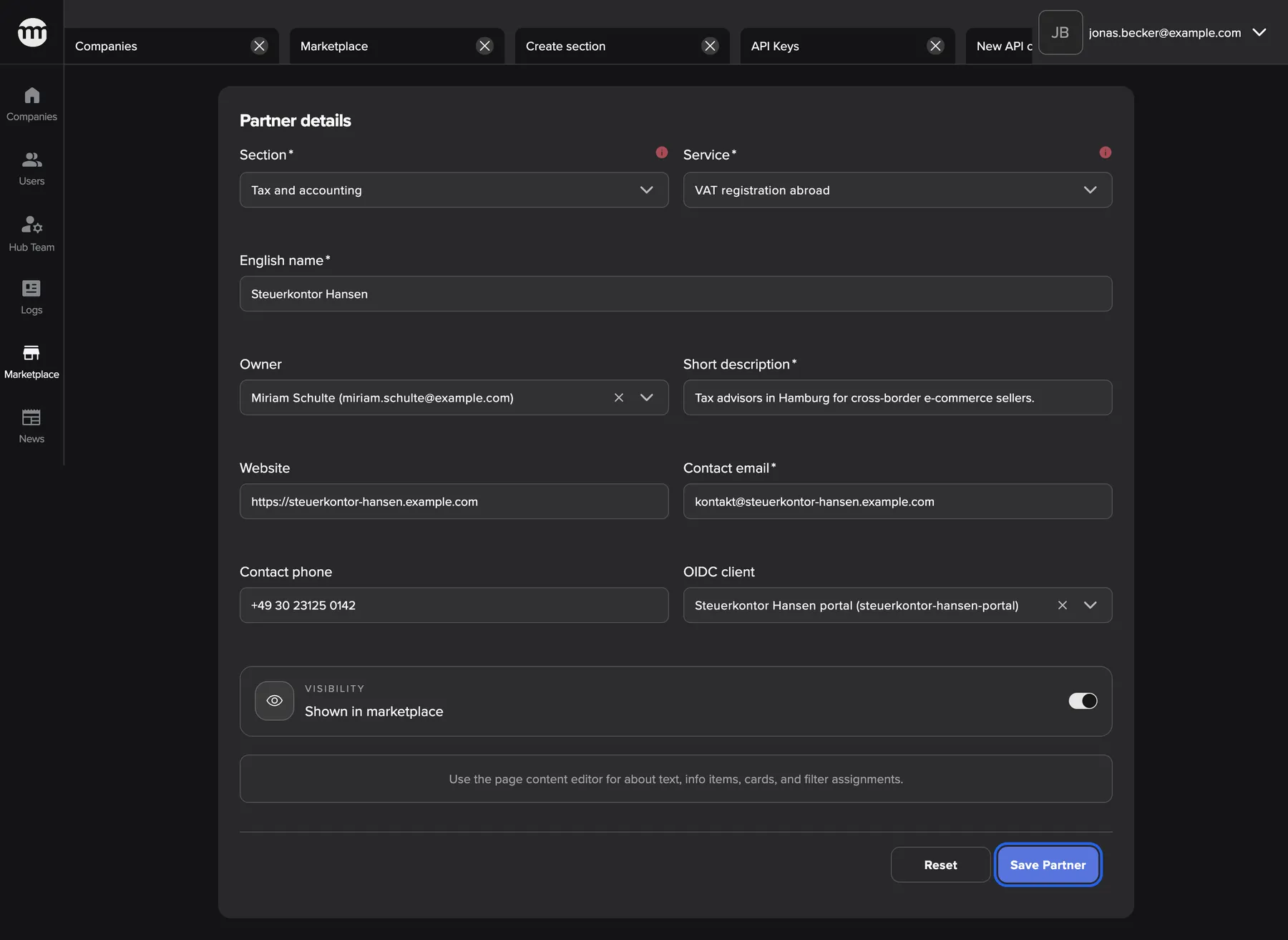

Partner details hold the listing data. The Owner field decides which partner user may edit this partner. What this screenshot shows
- Screen
- Partner details
- Highlighted
- “Save partner”: saves the partner and closes the tab
- Also visible
- Section and service of the partner; Owner: Miriam Schulte; OIDC client: Steuerkontor Hansen portal
- Purpose
- creating the listing and linking the app
-
Fill the partner page. On the partner row, select Content. Upload the logo, which saves at once. Add the about text, one category and the compatible tools. Info rows and up to 4 cards are optional. Save. The Partner page editor covers every block.
-
Let the partner maintain their listing (optional). Invite their contact under Hub Team with the role Marketplace Partner. Then choose them as Owner on the partner. A listing has one owner, so assign each listing to the person responsible for it. What Marketplace partners manage themselves explains what they can do.
-
Translate the new texts. Select Translations on the overview. Download a fresh CSV every time, fill your language column and upload it. Keys of moved or deleted items change, so an old file brings back outdated English. Read the import summary afterwards. The translations tab explains every line.

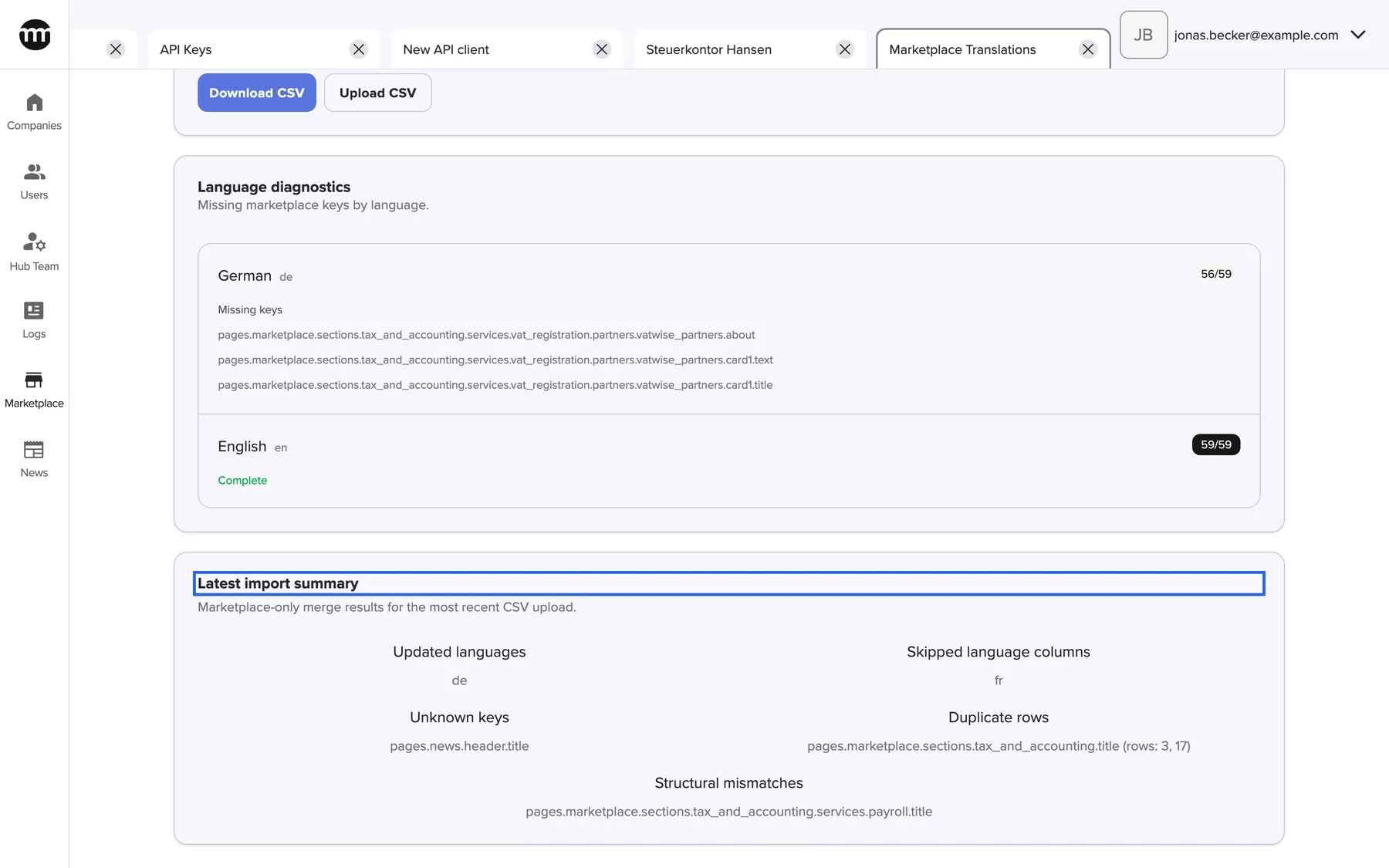
The import summary tells you which languages changed and which rows were skipped and why. What this screenshot shows
- Screen
- Marketplace Translations
- Highlighted
- “Latest import summary”: shows the result of the last upload
- Also visible
- Updated languages: de; Skipped column fr; One unknown key, one duplicate, one structural mismatch
- Purpose
- checking the translations after an upload
-
Make it visible and check the order. Switch on the section’s visibility in its settings, and save. Move the partner with the arrows if it belongs higher up. Arrows save at once. In the Marketplace overview, a crossed-out eye marks anything sellers still don’t see.
-
Test the sign-in, then go live (only with an app). The partner signs in with a customer account made for trying it out. Check that the consent page shows the right name and data. Then open the client with Edit in the list of API clients. Add the production redirect URI and any further scopes.
What happens next
Section titled “What happens next”Sellers find the partner in the Marketplace, in the order you set. Each text appears in the seller’s language, or in English where a translation is missing. People without an account see the same listing and sign in to install it.
With an app, a seller who installs the partner can sign in to it with their comrce Hub account. On the first sign-in they approve the request on the Single Sign-On Request page. comrce Hub remembers that per seller, app and company. Until a seller installs a partner with an app, its website is hidden from them.
Every change is in the logs with your name. Look for Marketplace section created, Marketplace partner page updated or API client created.
Options
Section titled “Options”The app part has three switches. Start with all three off and add only what the partner names.
| Choice | When to pick it | Effect |
|---|---|---|
| None of them (recommended start) | The app signs sellers in through the browser | Normal sign-in with the consent page |
| Stay signed in and Allow silent authentication | A dashboard sellers open every day | The app keeps sellers signed in, and returning sellers skip a second prompt |
| Allow client credentials flow | A service on the partner’s server that works without a seller, such as a reporting export | The partner’s server gets access for the app itself |
- Keep a new section hidden until two partners are complete. Then switch it on and translate the same day. Sellers complain most about a section with one half-filled partner and English-only texts.
- Translate what sellers see first. That’s section and service titles, partner names and short descriptions. Sellers read about texts and cards only after they open a partner.
- Start partner self-service with one listing. Watch the emails and the logs during its first week, then assign the company’s other listings. You can correct any page at any time.
- Adding scopes is harmless, removing one is not. Adding signs no one out. Removing a scope ends every approval and token of the app in the same save, so tell the partner first.
If something goes wrong
Section titled “If something goes wrong”| Symptom | What to check | Fix |
|---|---|---|
| Sellers don’t see the new partner | A crossed-out eye on the partner, its service or its section | Switch visibility on and save |
| The import summary lists structural mismatches | You uploaded an older CSV | Download a fresh CSV and translate in that one |
| The import summary skips a language column | The language is not set up under Languages | Add the language first, then upload again |
| The secret dialog closed before you copied the secret | It cannot be shown again | Create a new client, give the partner the new ID and secret, and delete the old client |
| The partner reports “redirect URI mismatch” | Compare their address character by character with the client’s list, including trailing slashes | Add the exact address with Edit |
| A colleague tests the app with a staff account and is refused | Staff accounts cannot sign in to partner apps | Test with a customer account that belongs to a company |