

Write or edit an article
In the article editor, each language of a News article has its own title, text and status. All languages share the publish date, categories and cover image. You publish each language when it is ready, then save the article. Until then, sellers see nothing.
The editor opens in its own tab from the News list. Use Add article for a new article or Edit on a card. On an archived card, use Restore or Copy to Active News.
What you can do here
Section titled “What you can do here”- Write an article in English. English is the source. What you type is copied into every language you have not changed yet. Write a new article.
- Translate each language. Type it, or let AI translate fill it for review. Translate and publish each language.
- Publish each language on its own. Only published languages reach sellers. Translate and publish each language · Publishing news.
- Schedule the article. A future publish date hides it until that day. Set date, categories and cover.
- Restore or copy an archived article. Restore and copy.
The screen at a glance
Section titled “The screen at a glance”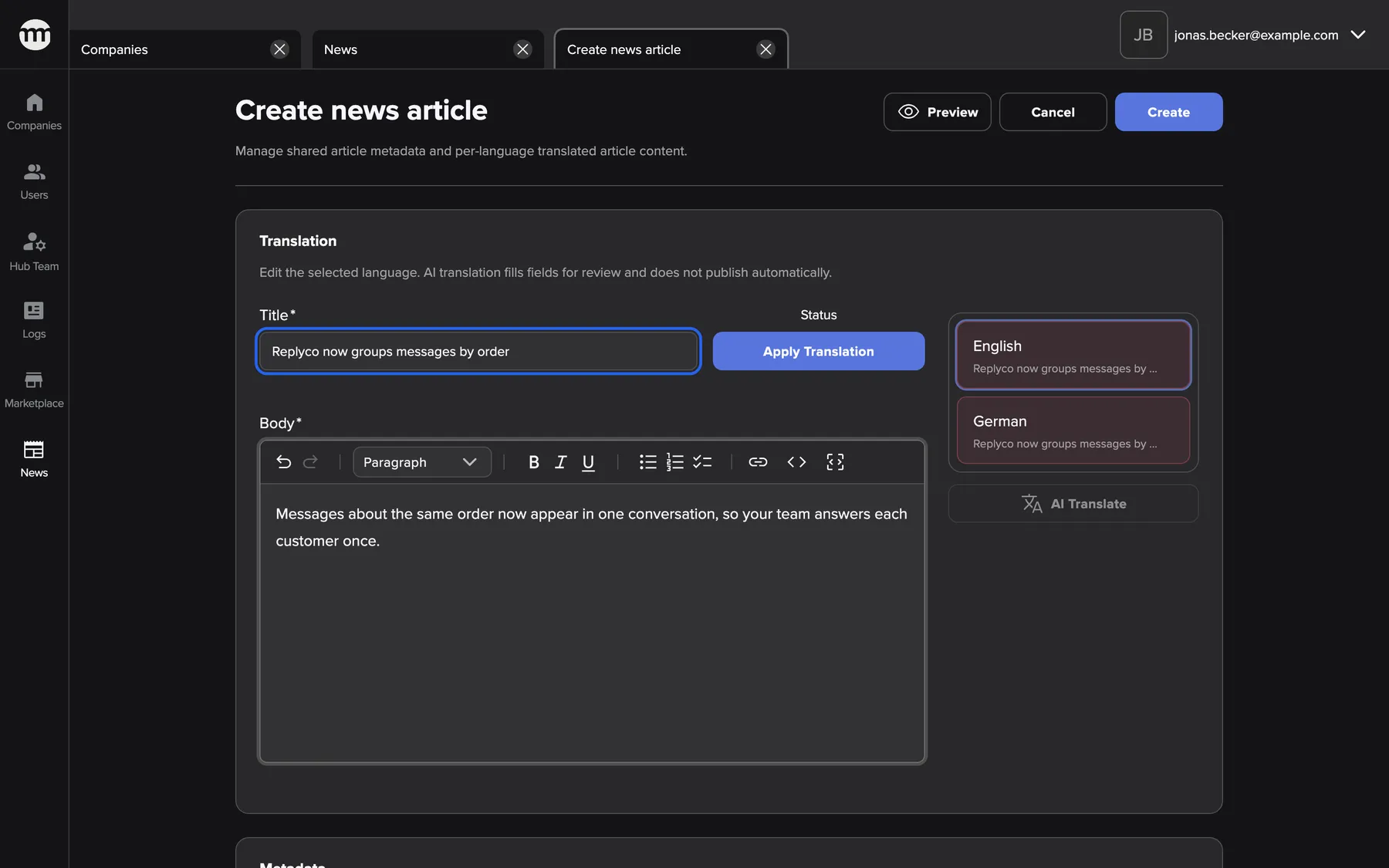
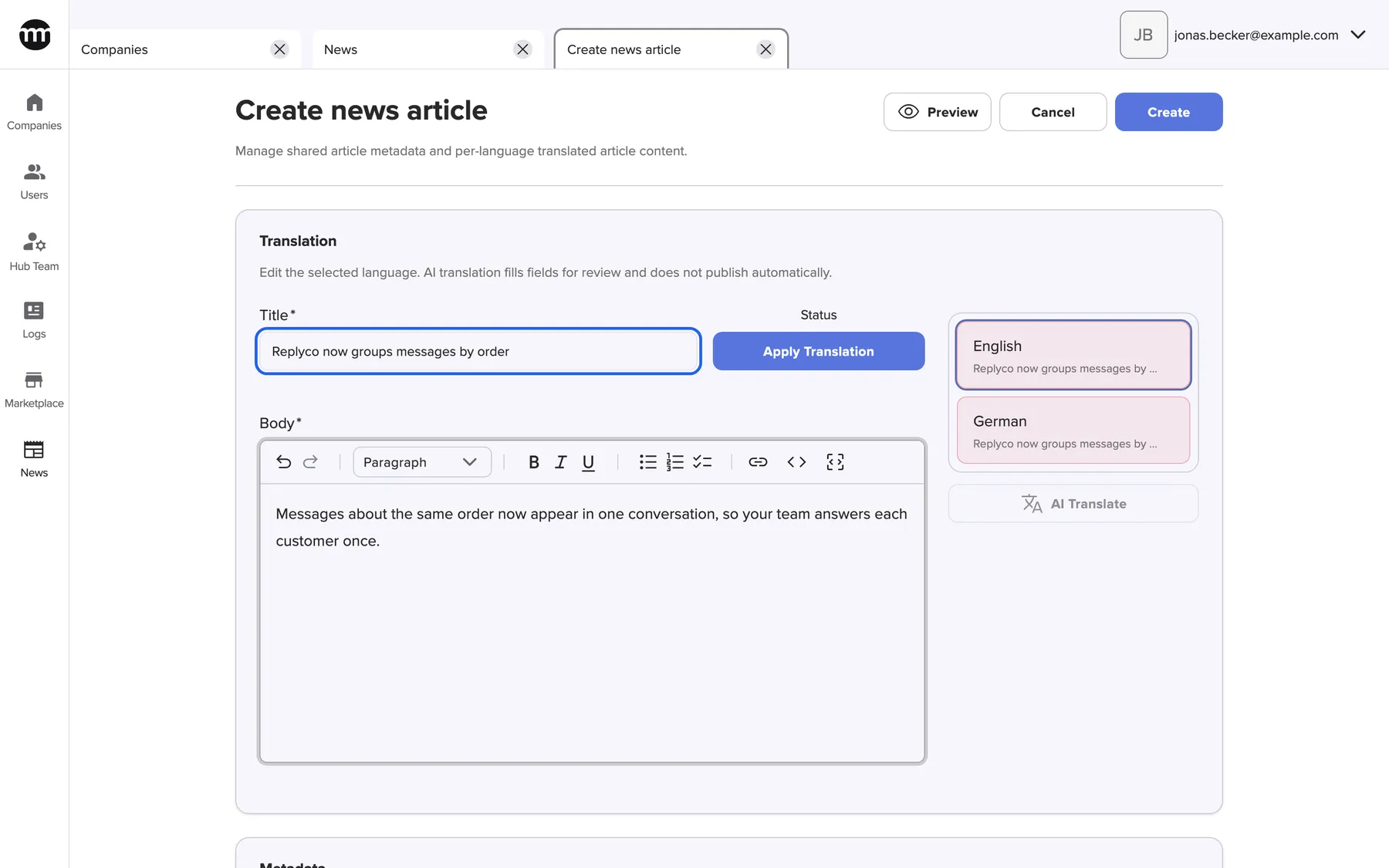
What this screenshot shows
- Screen
- Create news article
- Highlighted
- “Title”: title in the language selected on the left
- Also visible
- Buttons Create and Apply translation; Language list with English and German; Text editor with formatting toolbar
- Purpose
- Writing a new article
| Region | What it shows | What you do there |
|---|---|---|
| Header | The heading (Create news article or Edit news article), description, Preview, Cancel, and Create on a new article or Save on an existing one | Preview, leave or save |
| Translation card | Title, Apply translation, Body, the language list and AI translate | Write and publish each language |
| Metadata card | Publish date, Categories, Cover image | Settings shared by all languages |
Write a new article
Section titled “Write a new article”- On the News list, select Add article. The editor opens with English active.
- Type the Title and the Body. The body editor supports headings, lists, bold, italics, links and code. Untouched languages receive the same text automatically.
- Select Apply translation under Status to publish English. The button changes to Translation applied and greys out.
- Translate and publish the other languages, or leave them as drafts.
- In Metadata, keep or change the publish date and tick at least one category. Add a cover image if you like.
- Select Create at the top right. If a language is still a draft, a warning asks whether to save anyway. "News article created." appears and the tab closes.
Example: Replyco now groups messages by order, with English published and German as a draft for review the next day. The category is Product updates, and the publish date is today. English and German sellers both see the English text until German is published.
Translate and publish each language
Section titled “Translate and publish each language”The language list on the right has one button per language, English first. Green means published, and red means draft. The line under each language shows its title.
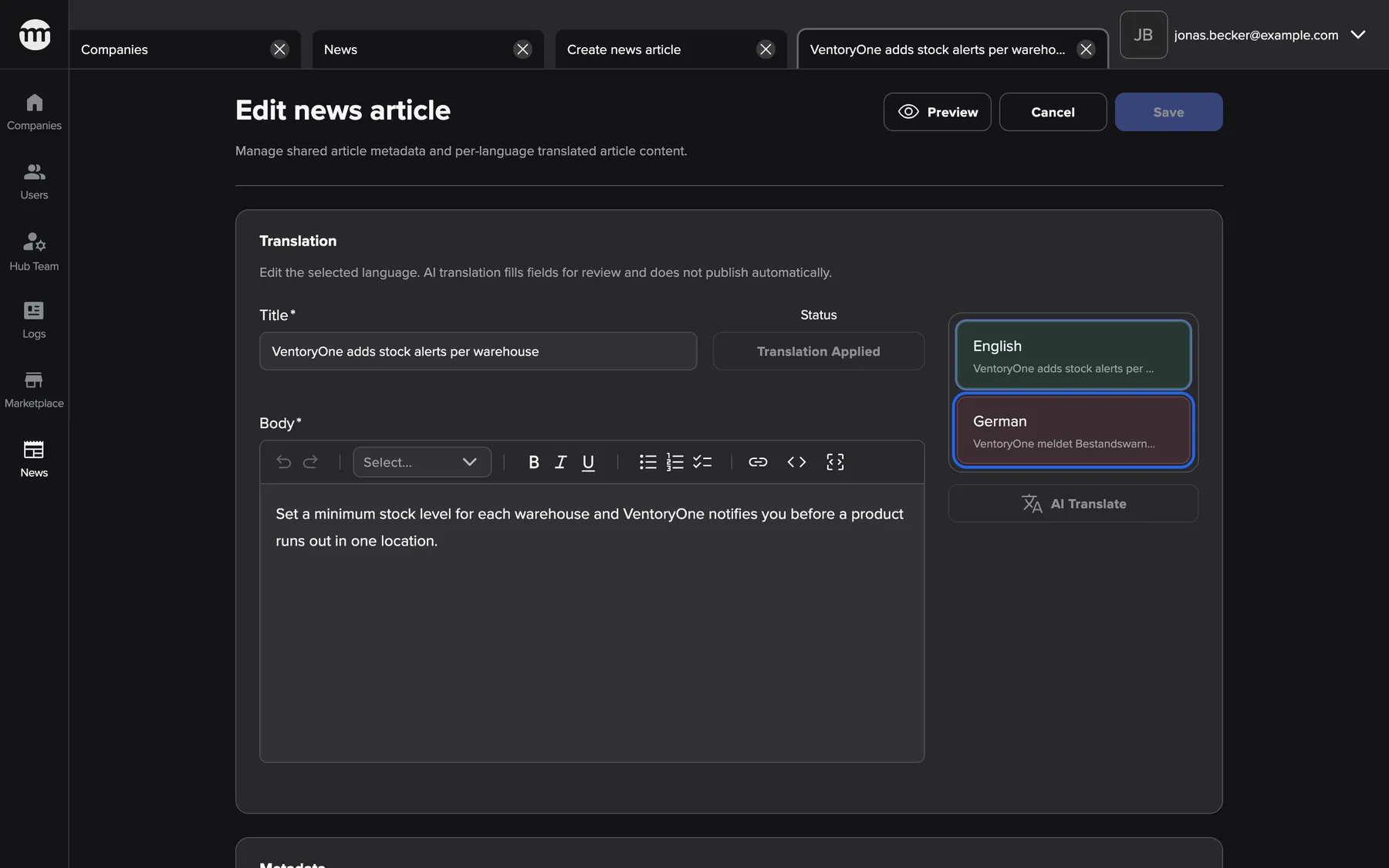
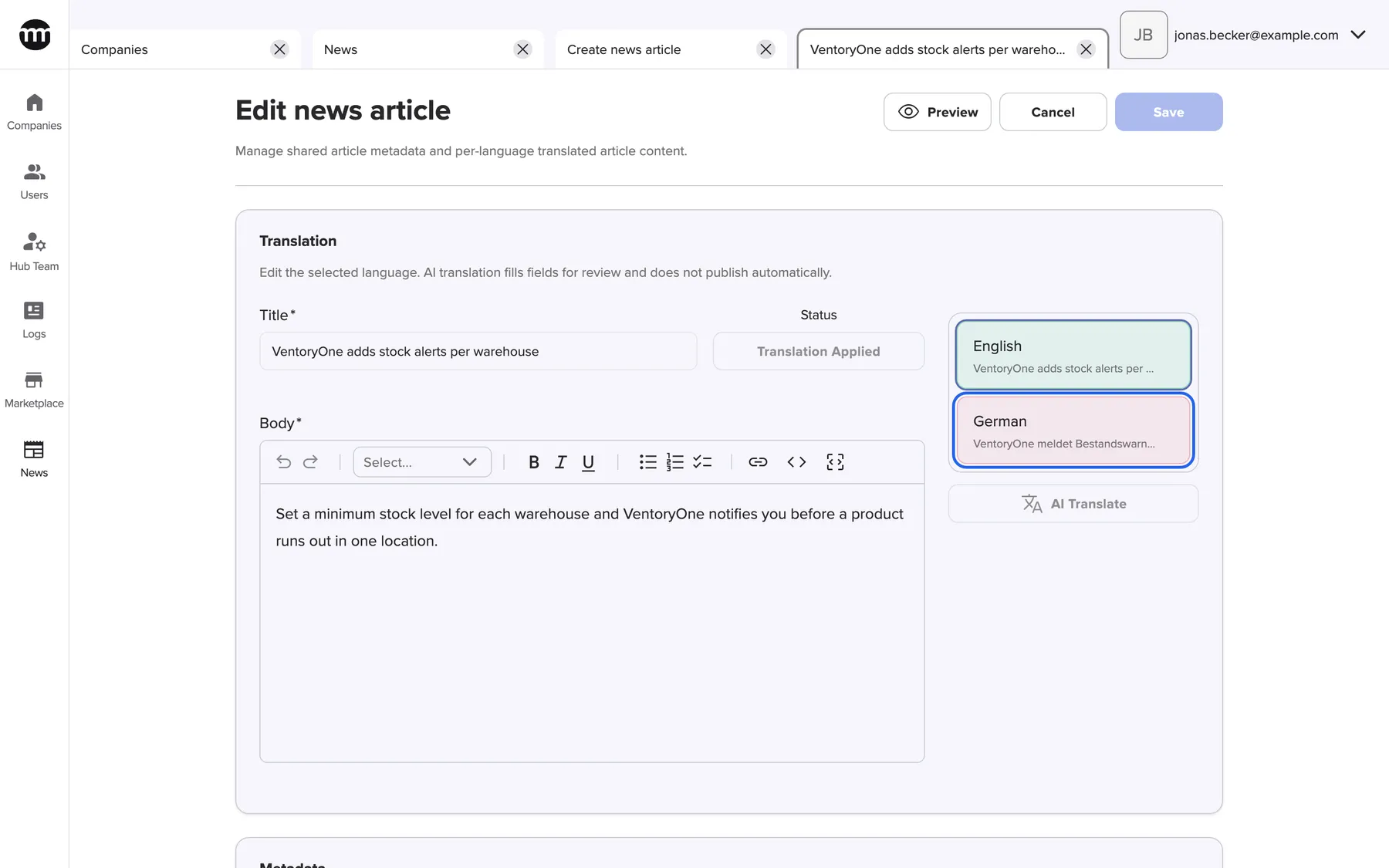
What this screenshot shows
- Screen
- Edit news article
- Highlighted
- “German”: switches the form to the German text
- Also visible
- English: Published; German: Draft; AI translate button
- Purpose
- Each language of an article has its own status
- Select a language in the list, for example German.
- Type the German title and text, or select AI translate. That translates the current title and text into this language and fills the fields. "AI translation filled the current language fields." appears.
- Review the text, then select Apply translation to publish this language.
Any edit to a language’s title or text sets that language back to draft, including AI translation. Publish it again after the change. AI translate is disabled for English, and while the title or text in English is empty.
Set date, categories and cover
Section titled “Set date, categories and cover”

What this screenshot shows
- Screen
- Edit news article
- Highlighted
- “Categories”: files the article under categories
- Also visible
- Publish date 5 March 2026; Five categories, Fulfilment ticked; Cover image card
- Purpose
- Settings that apply to every language
| Setting | Rules |
|---|---|
| Publish date | Required. Defaults to today. Past days cannot be picked. On an existing article an earlier date may stay unchanged. The article becomes visible from the start of that day, UTC. |
| Categories | At least one. Every category is offered, hidden ones included. |
| Cover image | Optional. A PNG or JPEG image of at most 8 MB, cropped to 16:9. Without one, the default cover is shown. |


What this screenshot shows
- Screen
- Create news article
- Highlighted
- sets the day sellers first see the article
- Also visible
- Calendar for March 2026; Today selected; Past days greyed out
- Purpose
- Scheduling an article with the publish date
On a new article the cover is uploaded after the article is created. On an existing article, a new cover or its deletion is saved immediately, without Save. Cancel does not undo it.
Save with draft languages
Section titled “Save with draft languages”When at least one language is still a draft, saving opens a warning titled "Save with draft translations?". It explains "Draft translations will be saved but will not be shown to users until they are applied". It lists the draft languages under Draft languages. Cancel returns to the form, and Save anyway saves anyway.


What this screenshot shows
- Screen
- Edit news article
- Highlighted
- “Save with draft translations?”: saves with drafts, or goes back to the editor
- Also visible
- German listed under Draft languages; Buttons Cancel and Save anyway
- Purpose
- The warning when you save with draft languages
Drafts are saved, but sellers do not see them. If English is published, sellers of a draft language see the English text.
Restore and copy
Section titled “Restore and copy”| Opened with | Heading | What is different |
|---|---|---|
| Restore on an archived card | Edit news article | Publish date is reset to today, and Save is enabled straight away. Saving makes the article active again and shows "Article restored successfully". |
| Copy to Active News | Create news article | All languages, statuses, categories and the cover are copied, and the date is today. Saving creates a new article and leaves the archived one untouched. |


What this screenshot shows
- Screen
- Edit news article
- Highlighted
- “Publish date”: sets a new publish date; today is preselected
- Also visible
- Publish date: today; Category Webinars ticked
- Purpose
- Bringing an archived article back


What this screenshot shows
- Screen
- Create news article
- Highlighted
- “Create news article”: nothing to click: the page shows only a message
- Also visible
- Title and text filled in from the original; Language list with the original's status; Create button active right away
- Purpose
- Starting a new article from an archived one
Every control, explained
Section titled “Every control, explained”
Every control, explained
Section titled “Every control, explained”Apply translation / Translation applied
Section titled “Apply translation / Translation applied”Language list and AI translate
Section titled “Language list and AI translate”Cancel and Save
Section titled “Cancel and Save”Cancel closes the tab at once, without asking, even with unsaved changes.
Save (Create on a new article) validates every language and the settings. It jumps to the first language with an error and shows "Please correct the highlighted fields before saving". Then it warns about drafts and saves. It is disabled until something has changed, except in restore and copy mode.
Publish date, categories, cover image
Section titled “Publish date, categories, cover image”Other controls on this page
| Control | What it does | Why |
|---|---|---|
| Preview | Shows the active language as sellers would see it. It needs a title and a text. | Check the article before publishing |
What you need to know
Section titled “What you need to know”
What you need to know
Section titled “What you need to know”| Topic | Fact |
|---|---|
| Source language | English. Typed English text is copied into untouched languages. |
| Required | Title and text in every language, a publish date, at least one category. |
| Publishing state | Per language. Any text change resets it to draft. |
| Saving order | Languages are saved one after another. If one fails, the earlier ones are already saved. |
| Logs | Created, updated, AI translated, cover uploaded or deleted are in the audit trail. |
Frequently asked questions
Section titled “Frequently asked questions”
Frequently asked questions
Section titled “Frequently asked questions”Writing
Section titled “Writing”Why do all languages show my English title?
Section titled “Why do all languages show my English title?”While you type in English, your title and text are copied into every language you have not changed yet. That way no language is empty. Replace them with real translations, or use AI translate. Publish each language when it is ready.
Can I save an article without translating it?
Section titled “Can I save an article without translating it?”Yes. You can save with the English text copied into the other languages and those languages left as drafts. The warning about draft languages asks once. Sellers then read the published English text until the translations are published.
Why is Apply translation disabled?
Section titled “Why is Apply translation disabled?”The active language needs both a title and a text before it can be published. While the language is already published, the button shows Translation applied, greyed out. Fill both fields, or change the text to make the button available again.
Publishing and scheduling
Section titled “Publishing and scheduling”How do I schedule an article for next Monday?
Section titled “How do I schedule an article for next Monday?”Pick next Monday as the publish date in the Metadata card, publish the languages and save. The article appears for sellers from the start of that day in UTC. Until then it is listed in the News list but hidden from sellers.
I edited a typo in the German text. Why can sellers no longer see the German version?
Section titled “I edited a typo in the German text. Why can sellers no longer see the German version?”Any change to a language’s title or text sets that language back to draft, and drafts are hidden. Select Apply translation again to publish the corrected German text, then save.
Why can I not choose a date in the past?
Section titled “Why can I not choose a date in the past?”New publish dates cannot lie before today, so the calendar greys out past days. On an existing article, an older date can stay as it is. Only changing it to another past date is refused.
Images and AI
Section titled “Images and AI”Which cover image formats are allowed?
Section titled “Which cover image formats are allowed?”PNG and JPEG images of at most 8 MB, 8,192 pixels per side and 16 megapixels.
WebP, GIF, SVG and animated images are refused. The file extension, its type and the image content must match. Otherwise the cropper shows The file extension, content type, and image format must match.
Choose a file, or paste an address into Paste image URL and select Load image from URL. Then crop to 16:9. Without a cover, sellers see the default News cover.
Does AI translate publish the translation?
Section titled “Does AI translate publish the translation?”No. AI translate fills the title and text of the active language as a draft for you to review. Publish the language with Apply translation after checking the text, then save the article.
Troubleshooting
Section titled “Troubleshooting”
Troubleshooting
Section titled “Troubleshooting”| Symptom | What to check |
|---|---|
| "Please correct the highlighted fields before saving" | The editor jumped to a language with an empty title or text, or the date or categories are missing. The red messages show where. |
| "An article with this or a similar title already exists. Choose a different title." | Another article in that language has the same or a very similar title. Change the title. |
| "Publish date cannot be in the past" | Pick today or a later day. Around midnight the server’s date (UTC) may already differ from yours. |
| "AI translation could not be completed." | AI translation is not available. Translate by hand. |
| Save stays grey | Nothing has changed yet. |
| Changes are lost after closing the tab | Cancel closes without asking. Save first. |