

Help a customer from inside their account
A customer asks for help, and a screenshot never shows the detail that matters. With their service PIN you impersonate them: you work in their account, in their company, and see what they see. The PIN is their consent, and they can end your session at any time. Every step is recorded under the customer’s name, together with your identity.
Before you start
Section titled “Before you start”| You need | Where it lives |
|---|---|
| The Supporter, Admin or Super Admin role | Your team member page under Hub Team. The staff role Partner and the content roles cannot impersonate. |
| Your own session, fully signed in | Including two-factor authentication if you use it, and with no impersonation already running |
| The customer’s service PIN | Their settings in the customer area, card Service PIN |
| An active customer | Their membership in the PIN’s company is Active, and so is the company’s owner. Neither account is scheduled for deletion. |
-
Ask for the service PIN. The customer opens their settings in the company they need help with. They read out the PIN from the card Service PIN, or copy it into the chat. A PIN is the letter S plus seven capital letters or digits, valid for 14 days.
-
Find the customer by PIN. Open Users and paste the PIN into the search. The list shows exactly that customer, even with a common name. Open them with the arrow. Users explains the rest of the list.
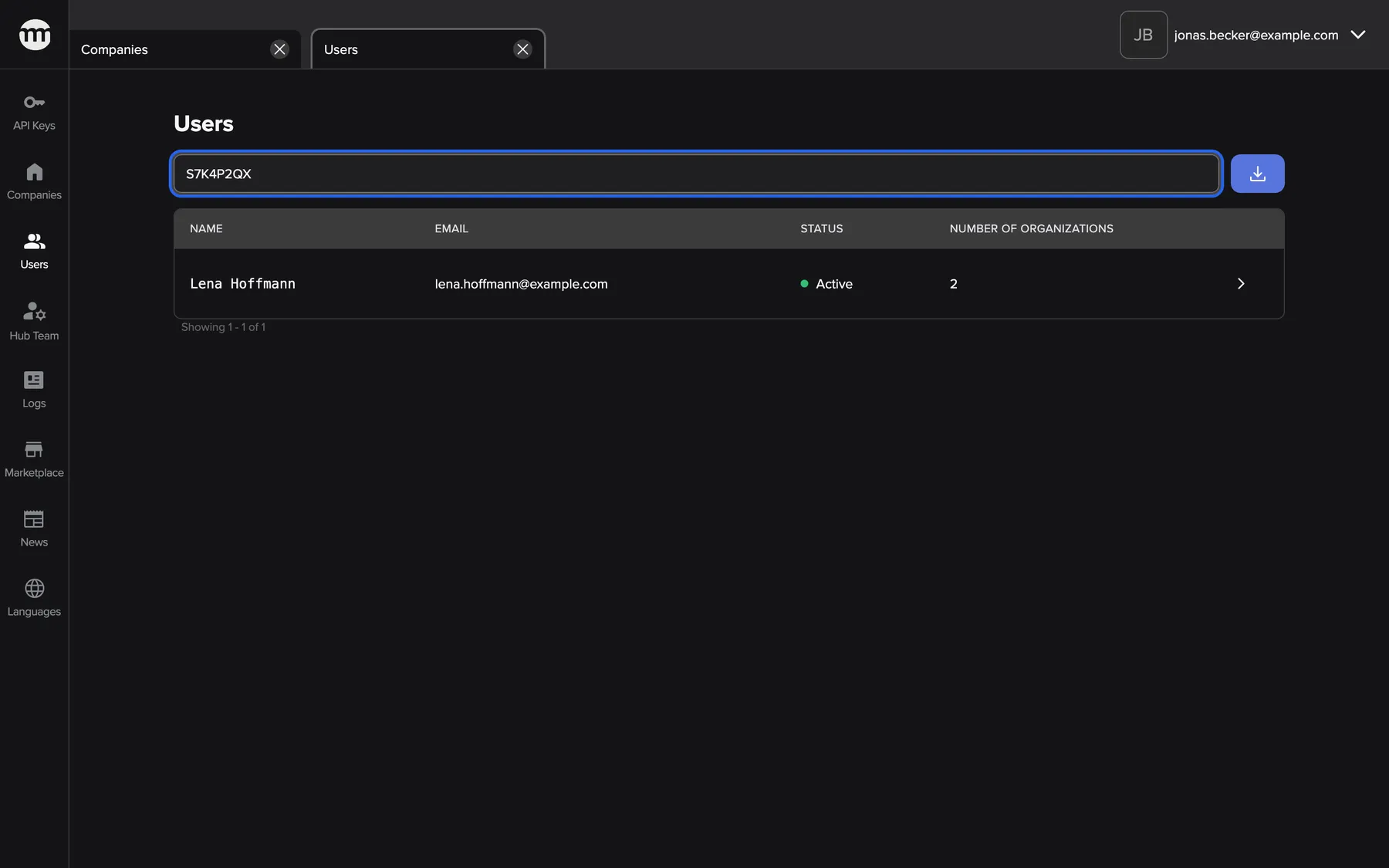

The PIN identifies the customer, so you open exactly the account that asked for help. What this screenshot shows
- Screen
- Users
- Highlighted
- “Search users”: finds the one customer who owns the PIN
- Also visible
- One row: Lena Hoffmann
- Purpose
- finding the customer who asked for help
-
Check the account before you start. The customer’s tab shows the account status, every company with its membership status, and open sessions. A colleague’s session in the sessions table means someone is already in. A customer user’s details explains each card.
-
Start the impersonation. In the card Impersonation, enter the PIN in Service PIN and select Start impersonation. Your admin tabs close, and the app reloads as the customer with Impersonation started


Type or paste the PIN and start. The session opens in the company the PIN belongs to. What this screenshot shows
- Screen
- Lena Hoffmann
- Highlighted
- “Start impersonation”: opens a session as the customer
- Also visible
- Service PIN field with S7K4P2QX; 2FA card above
- Purpose
- starting the impersonation
-
Work as the customer. You see their tools, dashboard and settings, in the PIN’s company. There is no banner, only End impersonation in the top bar. A few actions are blocked, so you cannot lock the customer out. Working in a customer’s account with a service PIN lists them.
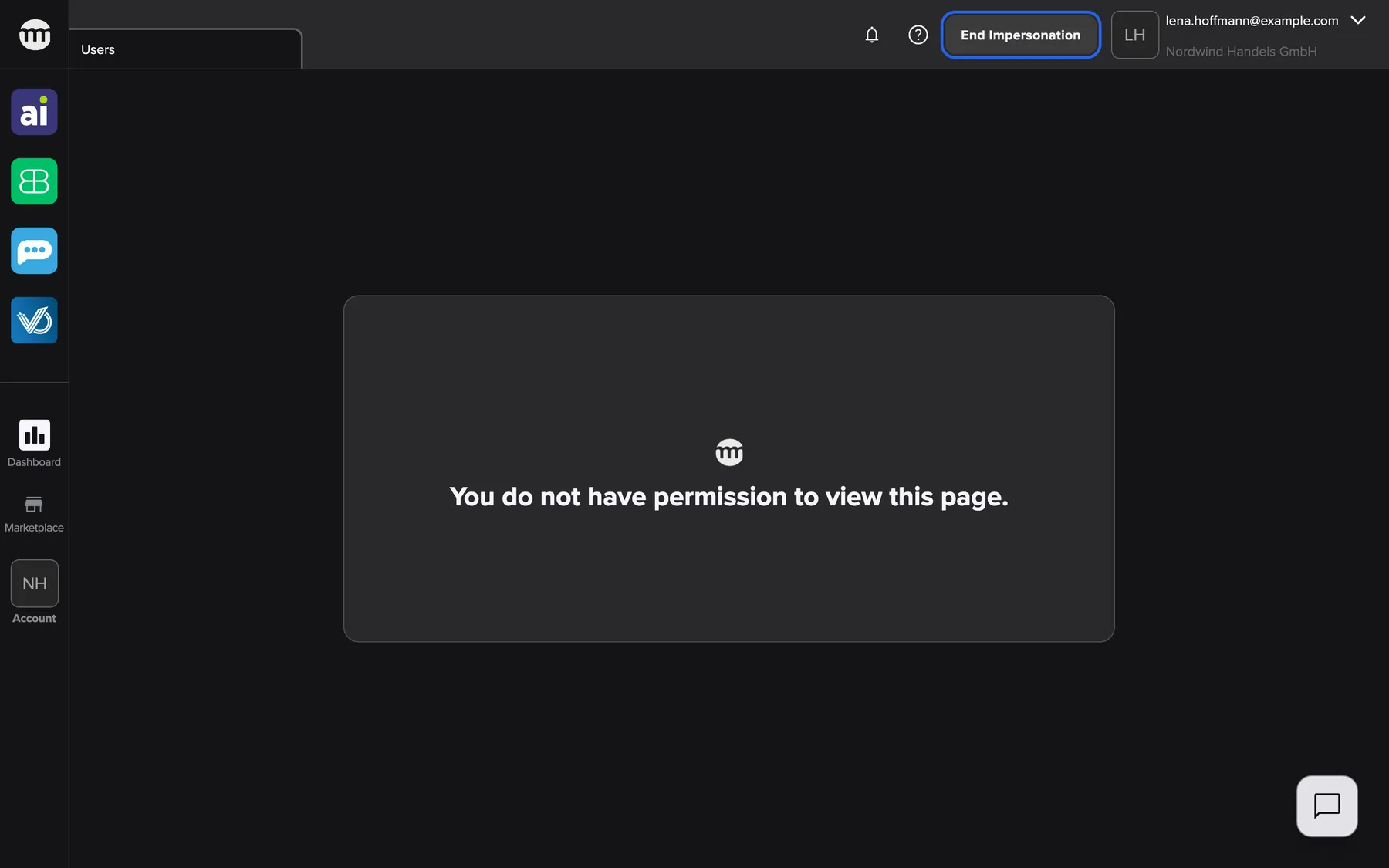

While impersonating, End impersonation in the top bar takes you back to the admin console. What this screenshot shows
- Screen
- Nordwind Handels GmbH
- Highlighted
- “End impersonation”: ends the impersonation and returns to your staff session
- Also visible
- The customer's sidebar with their tools; Company name without a switcher
- Purpose
- working inside the customer's account
-
End the impersonation. Select End impersonation in the top bar. You are back in the admin console as yourself. A colleague can also end a session from the sessions table on the customer’s tab, after a confirmation.
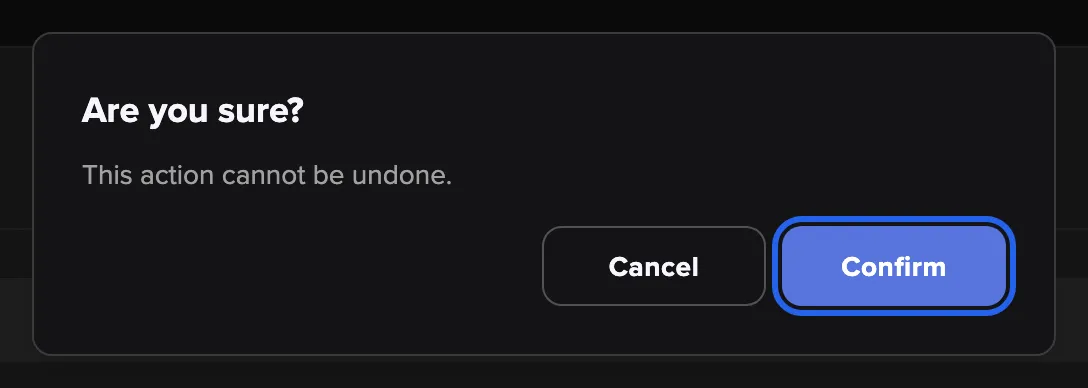

Ending a session from here also invalidates the PIN that opened it. What this screenshot shows
- Screen
- Lena Hoffmann
- Highlighted
- “Confirm”: ends the session and deletes its PIN
- Also visible
- Title Are you sure?; Cancel button
- Purpose
- ending an impersonation from the customer tab
-
Show the customer what you did (optional). Open View Logs on the customer’s tab. Every action from your session carries the Impersonated badge under the customer’s email. Logs explains filters and columns.
What happens next
Section titled “What happens next”The session ends at once, and comrce Hub deletes the PIN that opened it. The customer’s settings show a new PIN from now on. The session row disappears from their card with the support sessions.
The logs keep the trail: Impersonation by PIN succeeded for the start and Token revoked for the end. The customer’s colleagues with access to the Logs see the badged entries too.
Options
Section titled “Options”Some requests need no impersonation. They are changes an Admin or Super Admin makes in the console.
| Choice | When to pick it | Effect |
|---|---|---|
| Change one person’s membership | The customer wants to block one colleague | That person is signed out of this company at once. Their other companies are not affected. A user’s membership in a company |
| Change the owner’s membership | The whole company must be blocked | A company’s status is its owner’s status. Every member is signed out until the owner is active again |
| Transfer ownership | Someone else should be responsible | The new owner accepts within 48 hours. Never delete the owner instead: the company becomes read-only. A company’s details |
- Tell the customer when you start and when you end. Their settings list your session with your staff email, browser and start time.
- Prefer looking to changing. Every change appears in their Logs under their name, with the Impersonated badge. The customer may ask what you did.
- Change only what they asked for. Name, photo and password changes still work. A password change signs out every session of the account, yours included.
- Always end the session. A PIN opens the account again until it expires. Ending the session is what deletes it.
If something goes wrong
Section titled “If something goes wrong”| Symptom | What to check | Fix |
|---|---|---|
| The provided PIN is invalid. twice, although the customer reads the PIN correctly | Stop trying. Check the membership and owner status on the customer’s tab | Five failures lock you and the customer for five minutes. The exact reason is in the Logs under Impersonation by PIN failed |
| The card Impersonation is missing | Does the customer have an active membership? Is the account scheduled for deletion? | Reactivate the membership first. A deletion must be settled before anyone can impersonate. |
| Company switching is not available during impersonation. | You tried to switch company. The PIN opens only its own company | End the session and ask for a PIN from the other company |
| You suddenly land on your staff session | The customer or a colleague ended the session, or a password change signed everyone out | Ask the customer for the new PIN if you need to go on |